
How to save your licence data
This guide shows how to create a complete backup of your Ozeki 10 SMS Gateway licence data. You will verify the active licence, copy the licence files to a secure backup folder, and save the SMS Gateway installer alongside them so you can reinstall the software and restore the licence if needed.
Save your Ozeki 10 SMS Gateway licence data into backup folder
Log in to Ozeki 10 SMS Gateway using an administrator account. Open the Start -> Help menu, then select Product activation to access licence management. This page displays the licence information currently registered on the gateway.
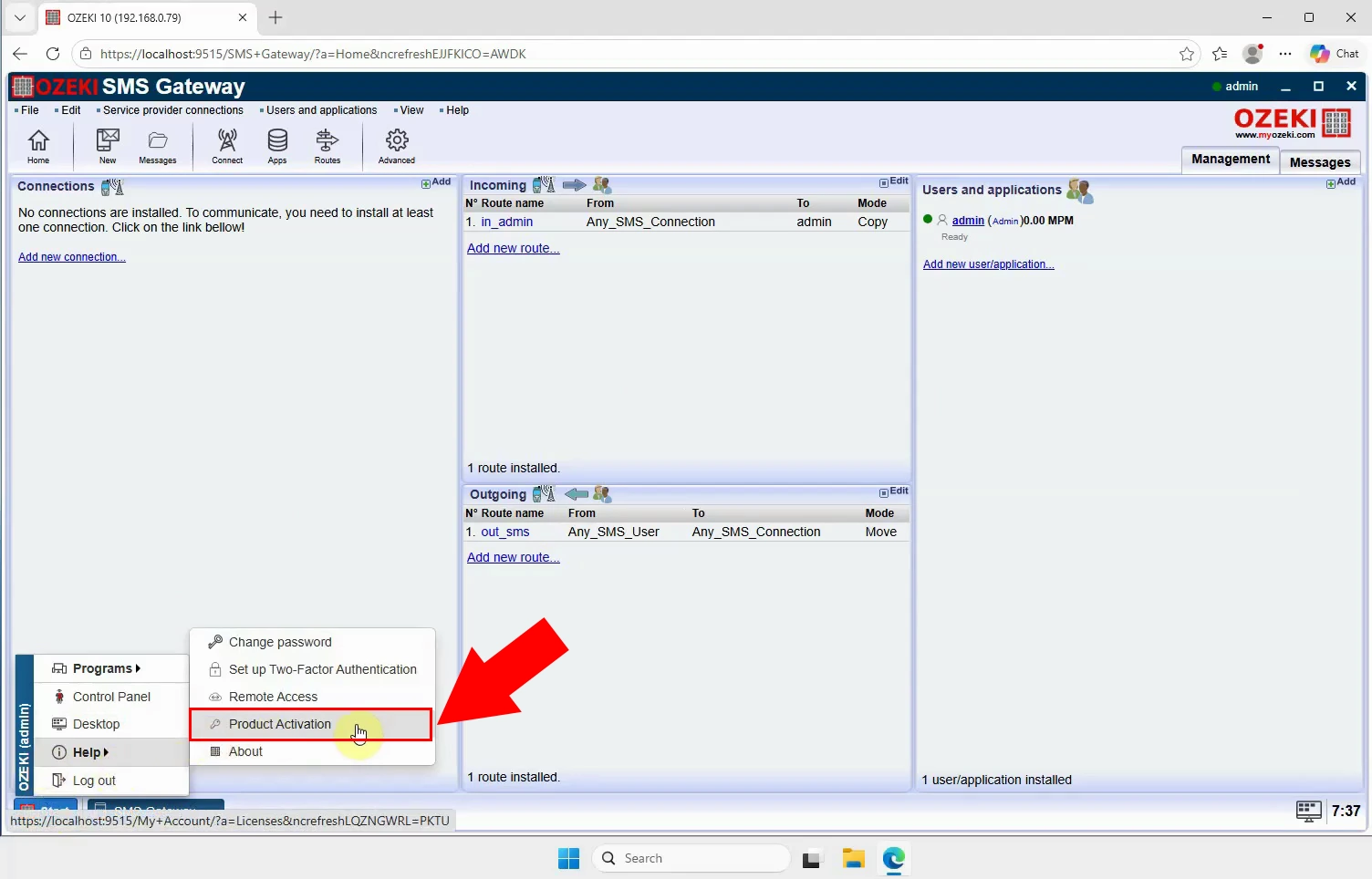
Review the licences listed on the Product activation page before creating the backup. Confirm that the displayed licence entries match the features and capacity you expect to use. This helps ensure that the correct licence data is retained for a future restore.
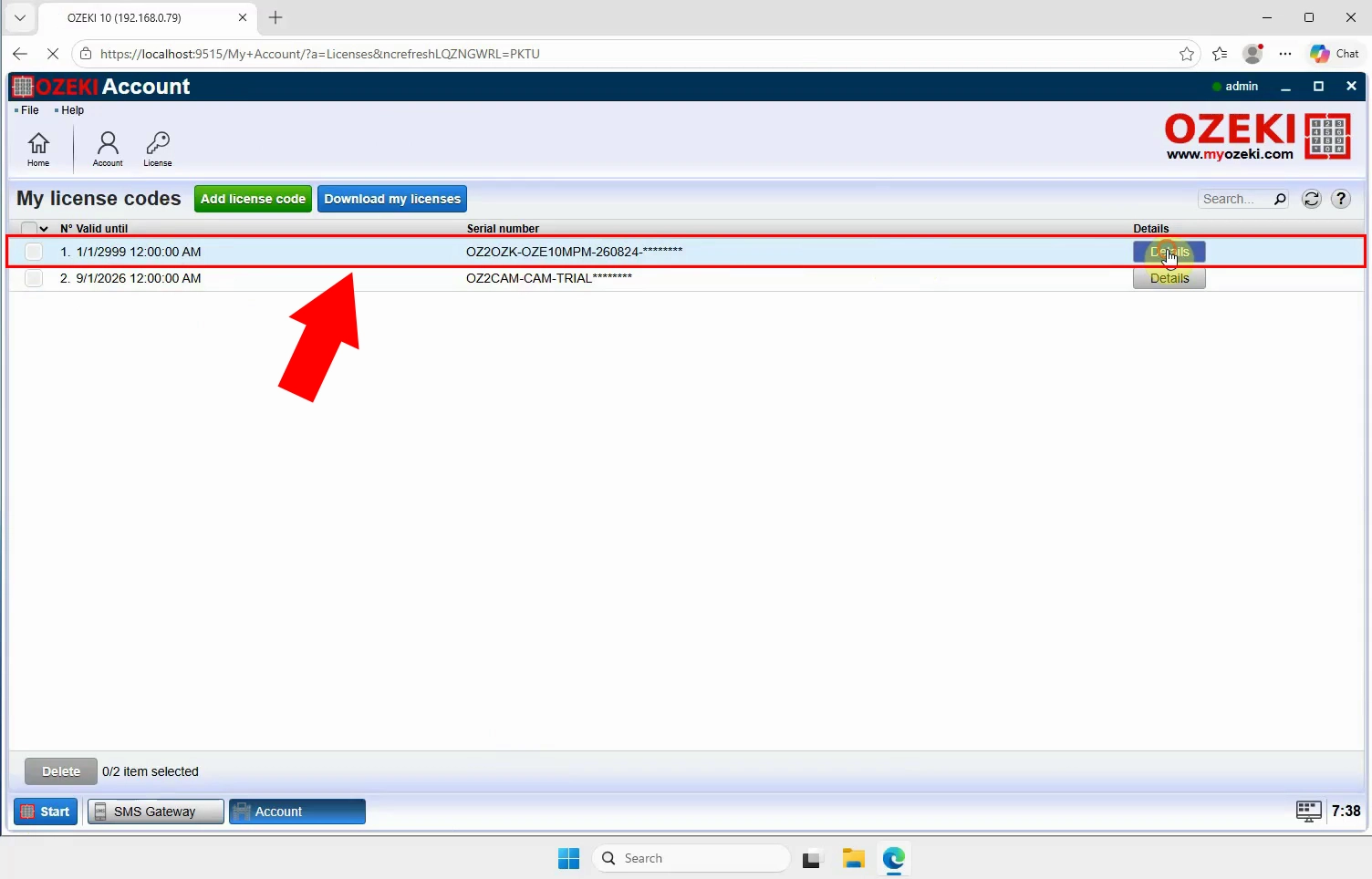
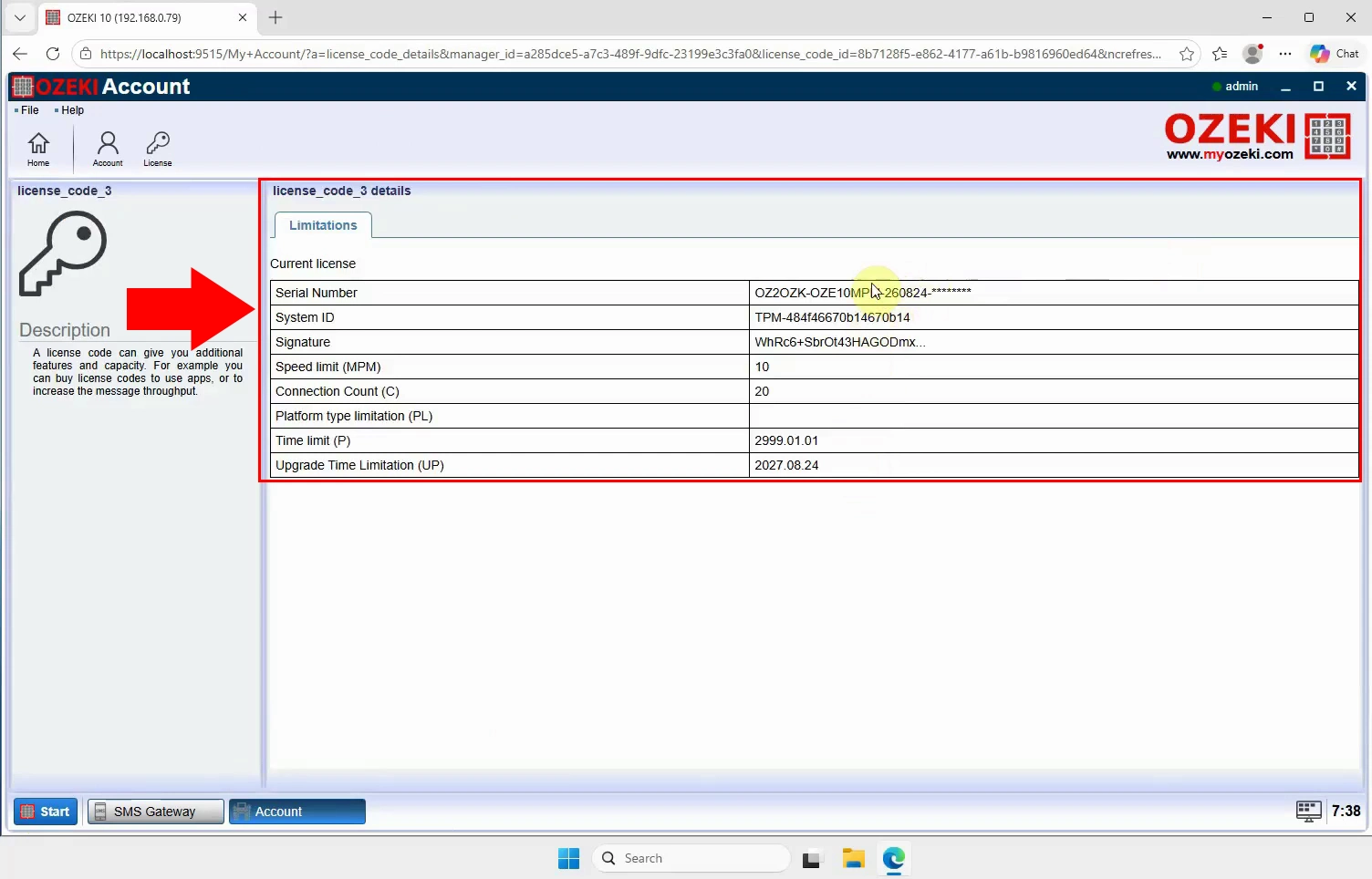
Select a licence entry to open its detailed information. Check the licence identifiers and other displayed details to verify that it is the active licence. Use this information as a reference when validating a restored installation.
Open the Ozeki SMS Gateway data directory on the server where the software is installed. Locate the files that store the gateway licence data and select them for copying. Do not move or delete the original files; copy them to preserve the active installation.
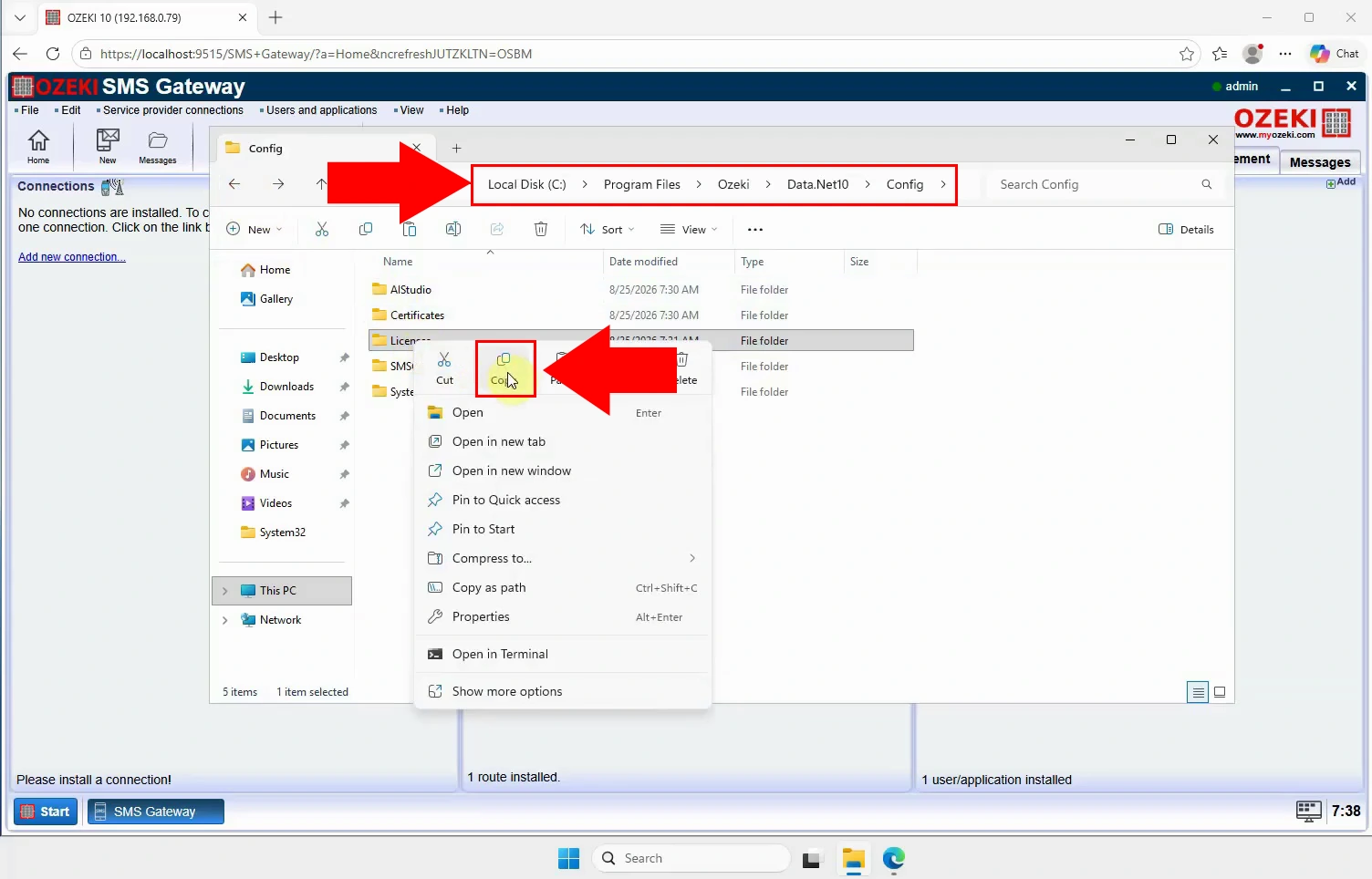
Create or open a secure backup folder outside the Ozeki installation directory. Paste the copied licence files into this folder and keep the backup in a safe location. These files can later be used to restore the licence on a replacement or rebuilt system.
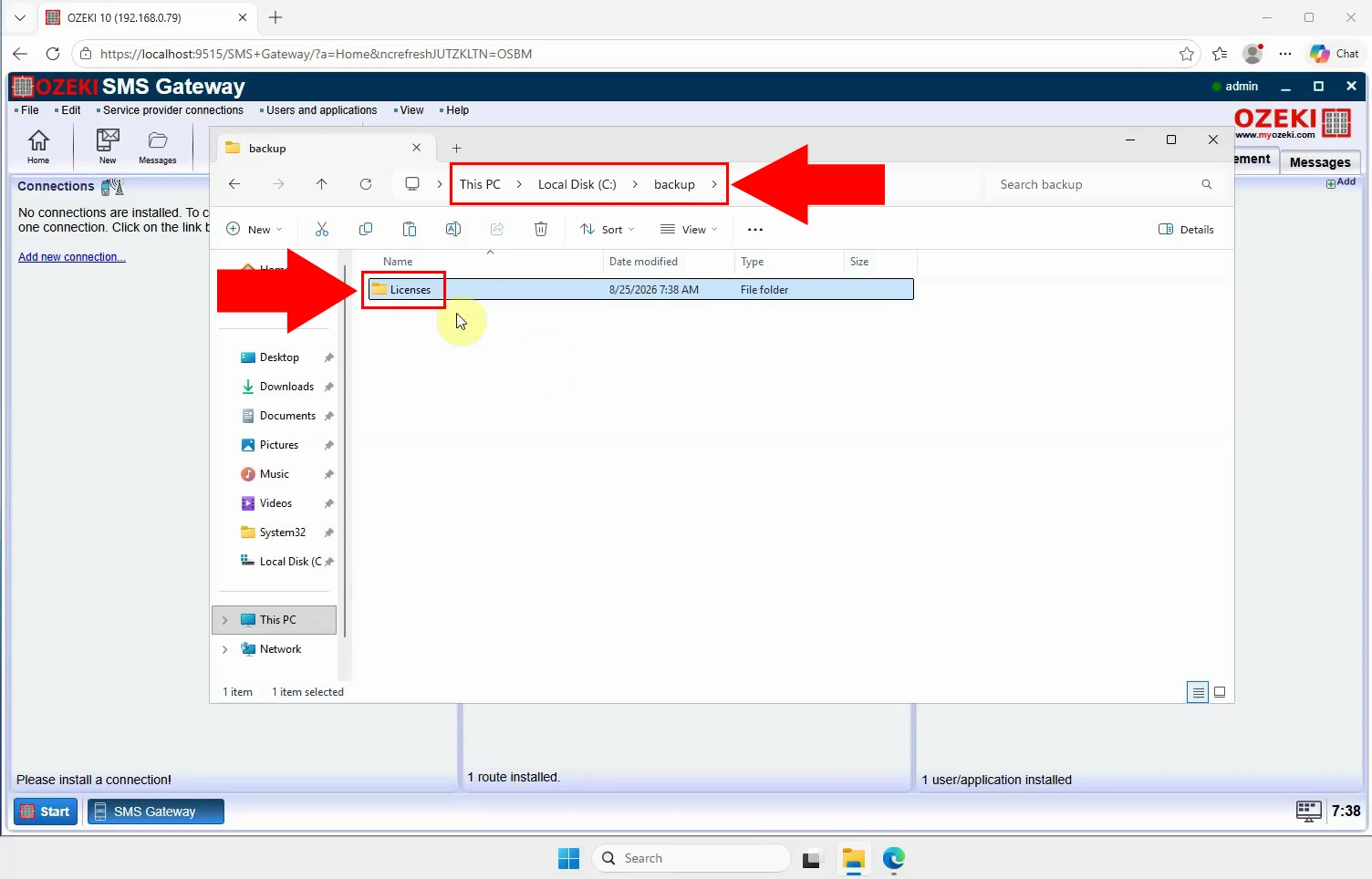
Download installation file into your backup folder
Open the official Ozeki SMS Gateway download page in a web browser. Use the download page to obtain the installer that corresponds to your operating system. Keeping the installer with the licence backup simplifies a full recovery procedure.
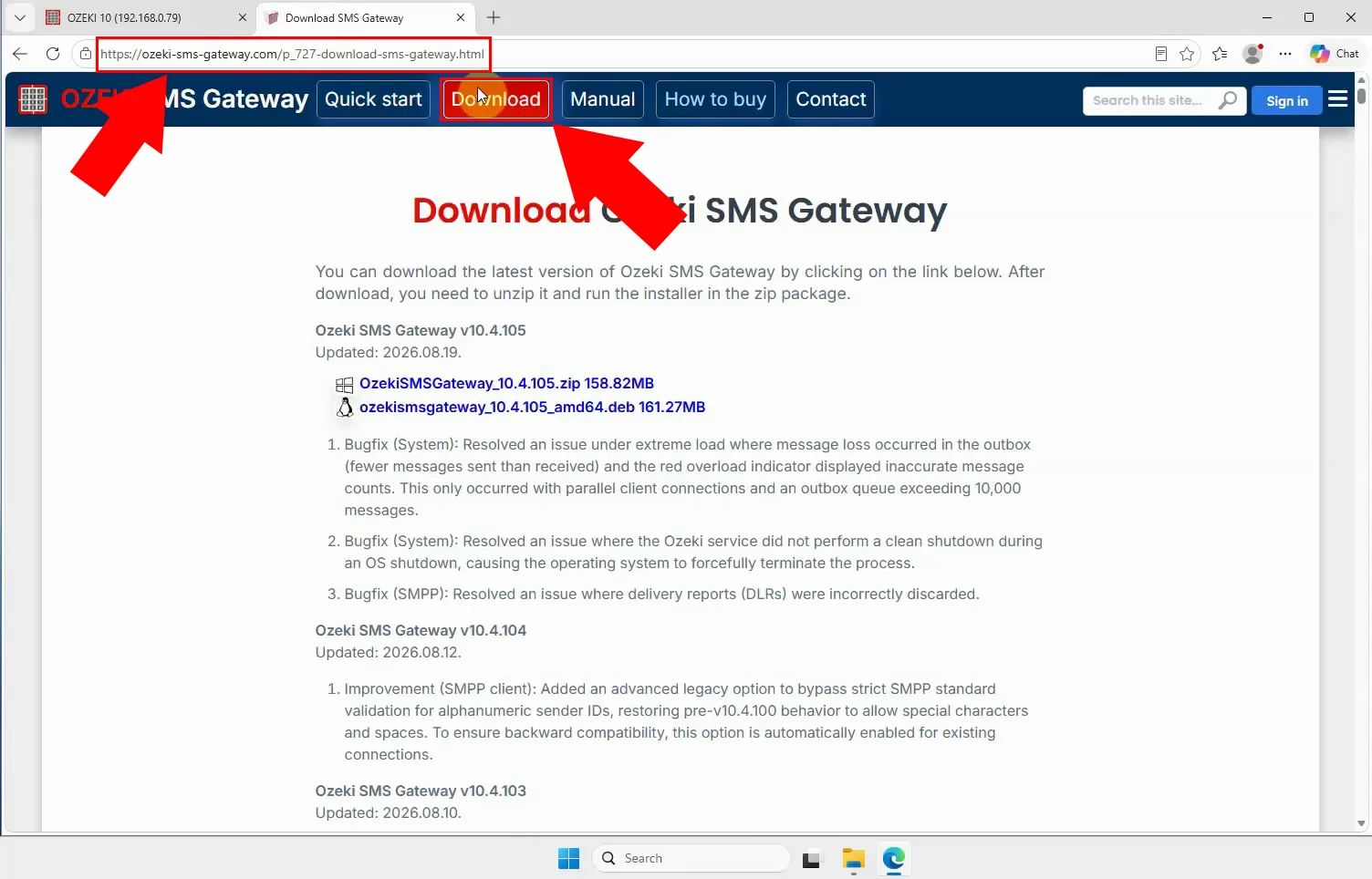
Download the Ozeki SMS Gateway installation package from the official download page. Wait for the download to complete, then verify that the installer file is available locally. Use the same installer version where possible to make a future restoration more predictable.
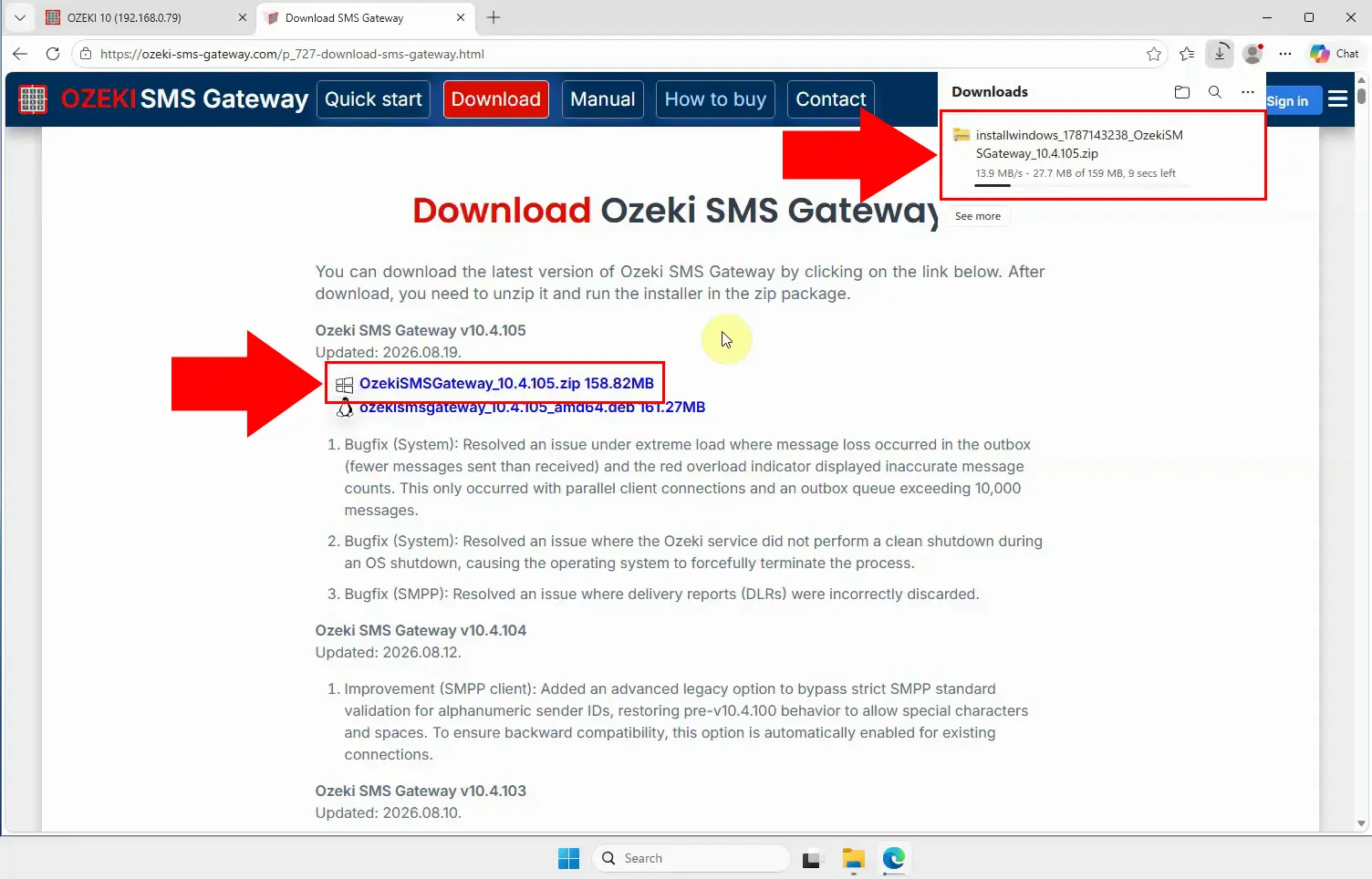
Copy the downloaded Ozeki SMS Gateway installer into the same backup folder as the licence files. Keep the installer and licence data together so both are available during disaster recovery. This backup can then be used to reinstall Ozeki SMS Gateway and restore its licence data.
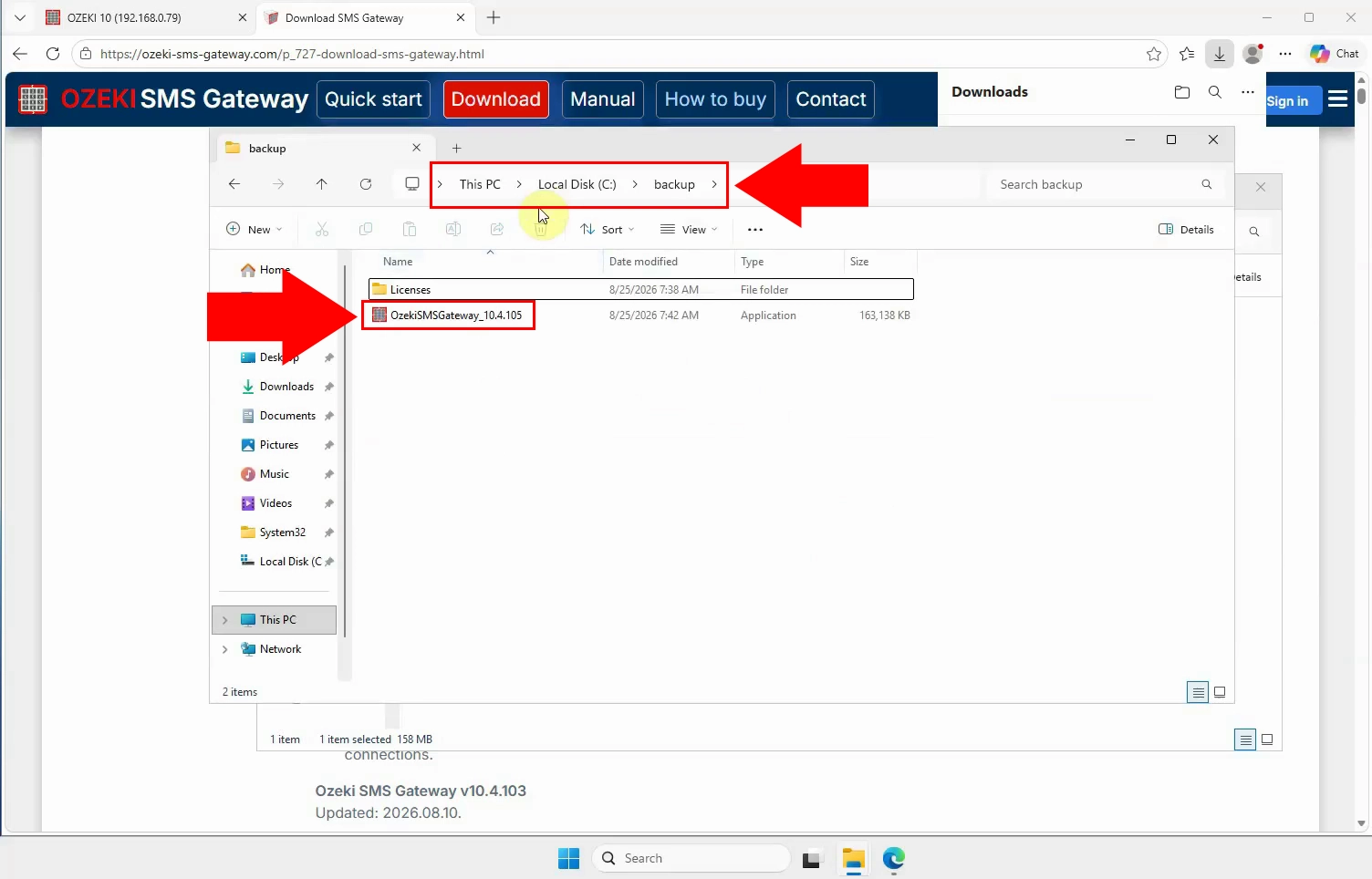
This is how you can restore your software and licence from your backup: Ozeki SMS Gateway software licence backup