Import address book
Importing an address book into Ozeki SMS Gateway lets you add contacts from a file instead of entering them one by one. This guide shows you how to select the appropriate address book type, upload your file, and check that the contacts were imported correctly.
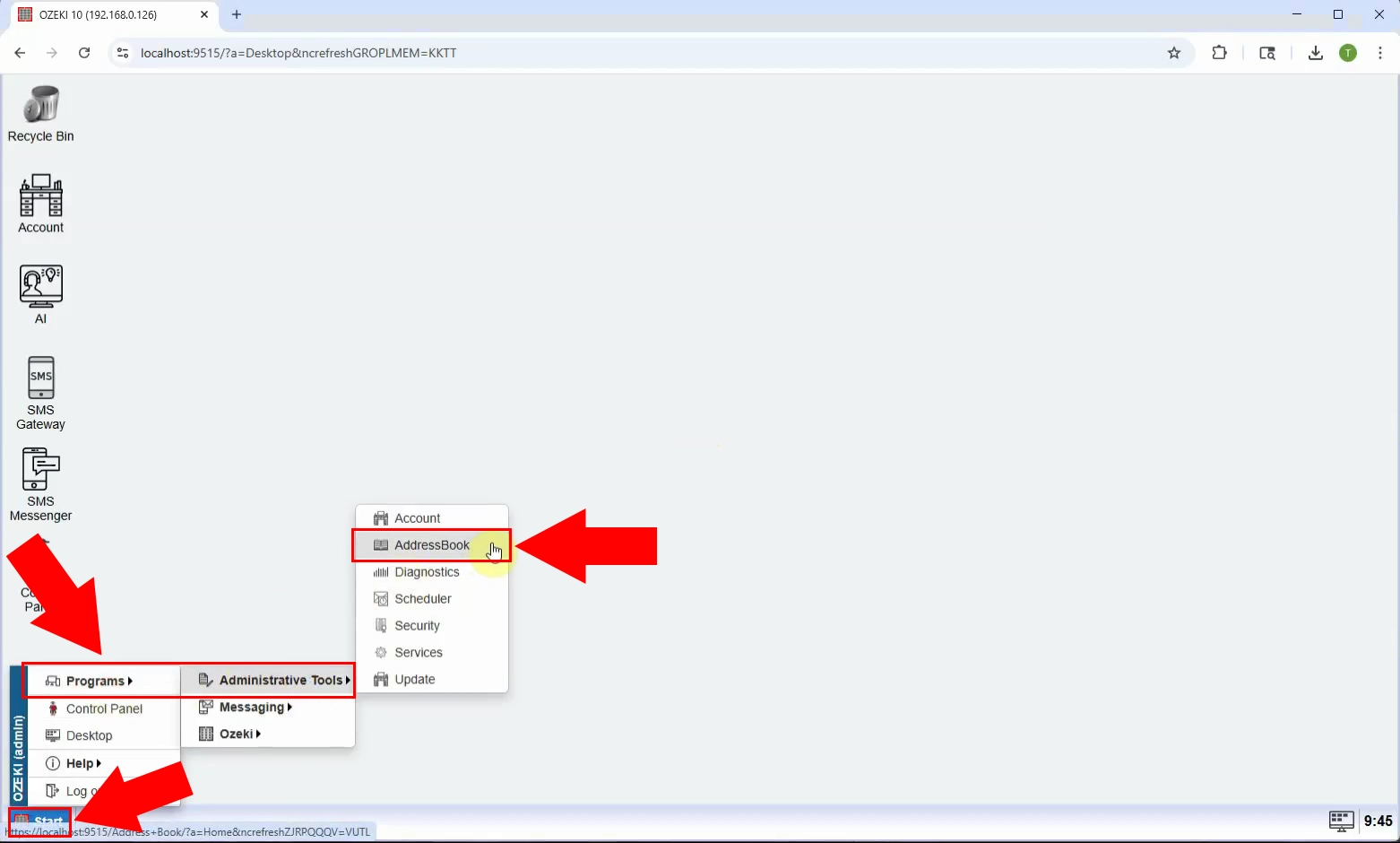
Open Ozeki SMS Gateway and find the Address Book menu. Click it to view your existing address books. From here, you can start importing a new one.
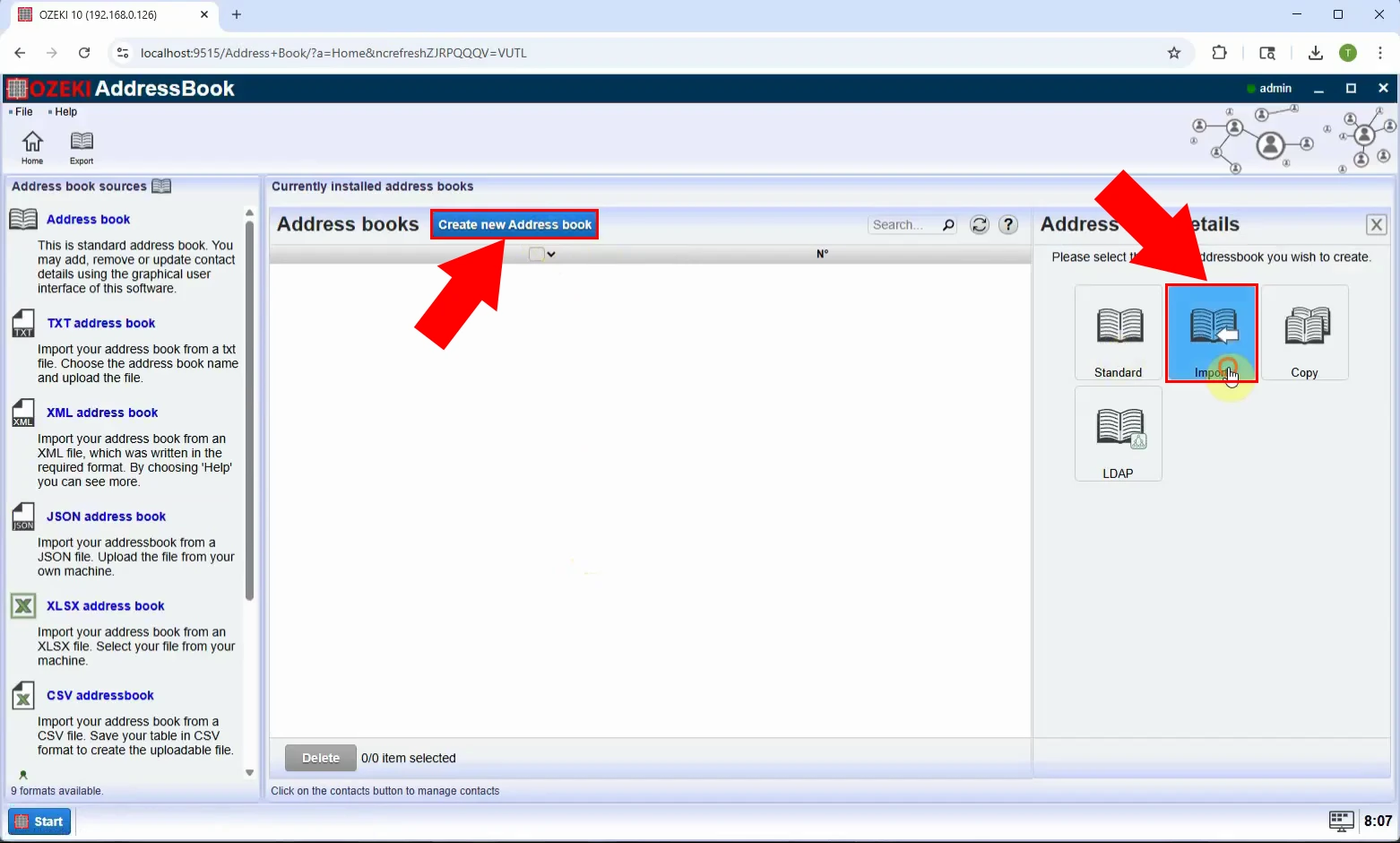
Click the Import Address Book option. This opens the import setup screen. You can now choose the type of address book to create.
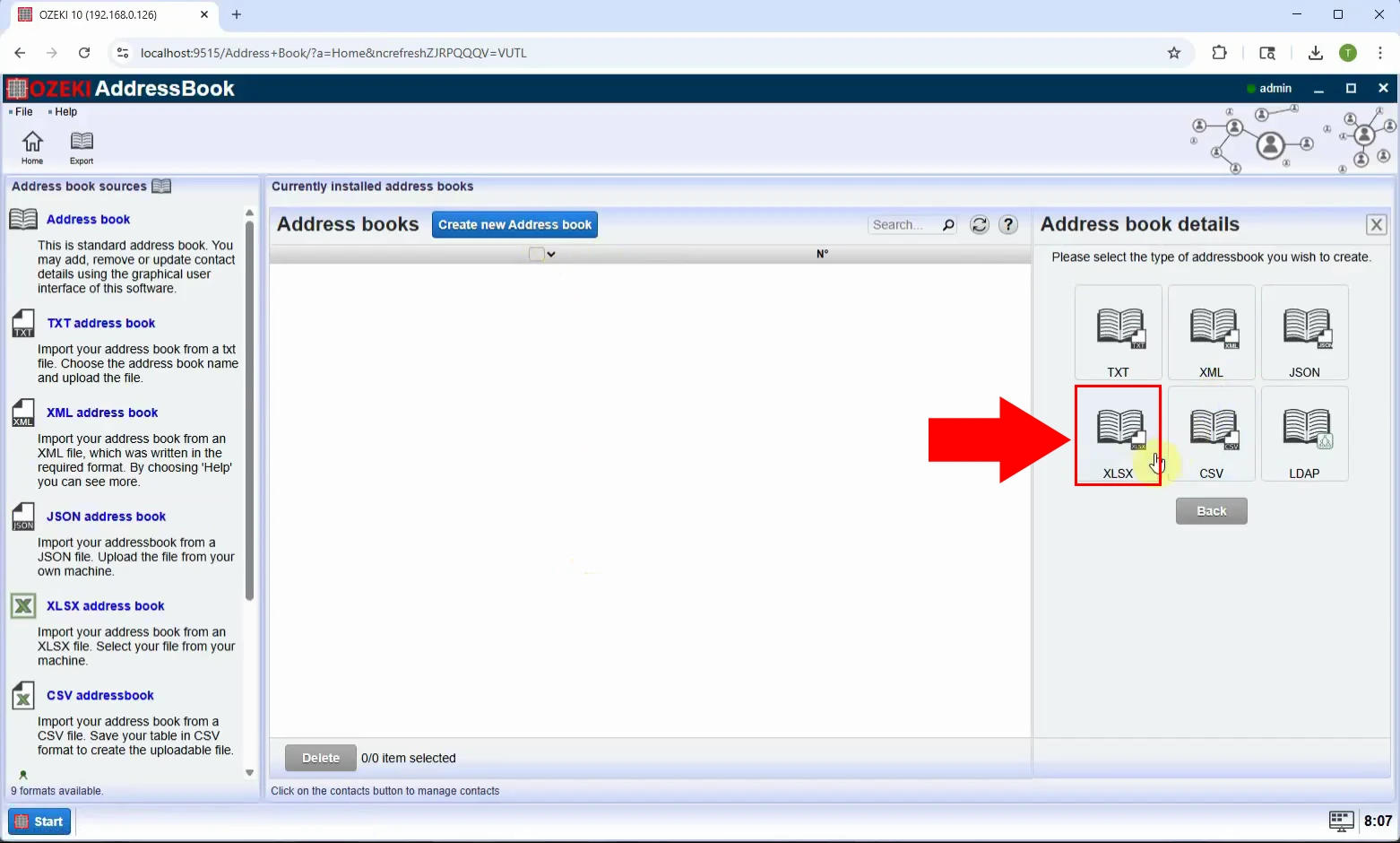
Select the address book type that matches your file. Check the available options before continuing. The following example uses an XLSX address book.
Prepare your spreadsheet in the required XLSX format. Check that its contact data follows the format shown on the page. Save the file before uploading it.
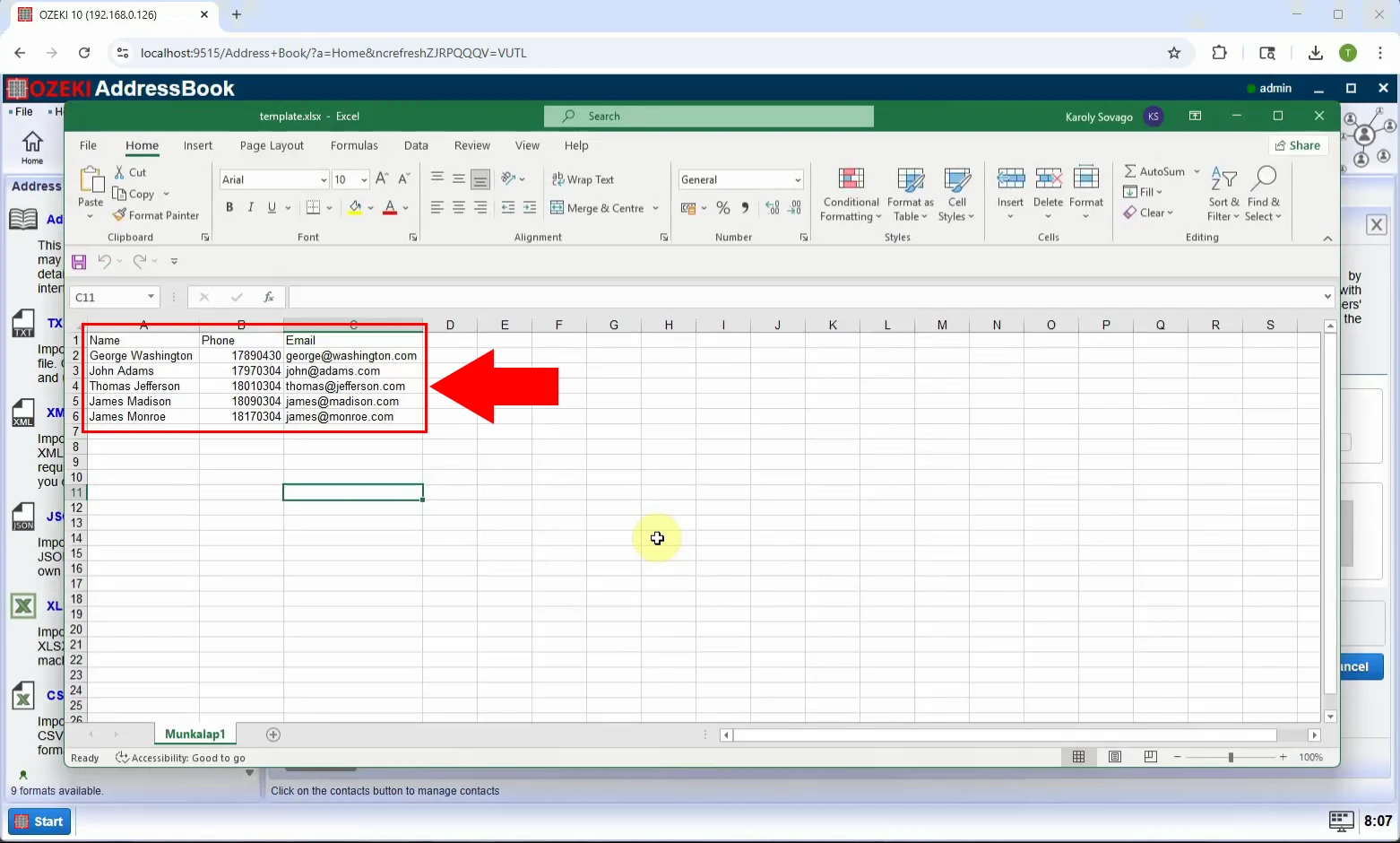
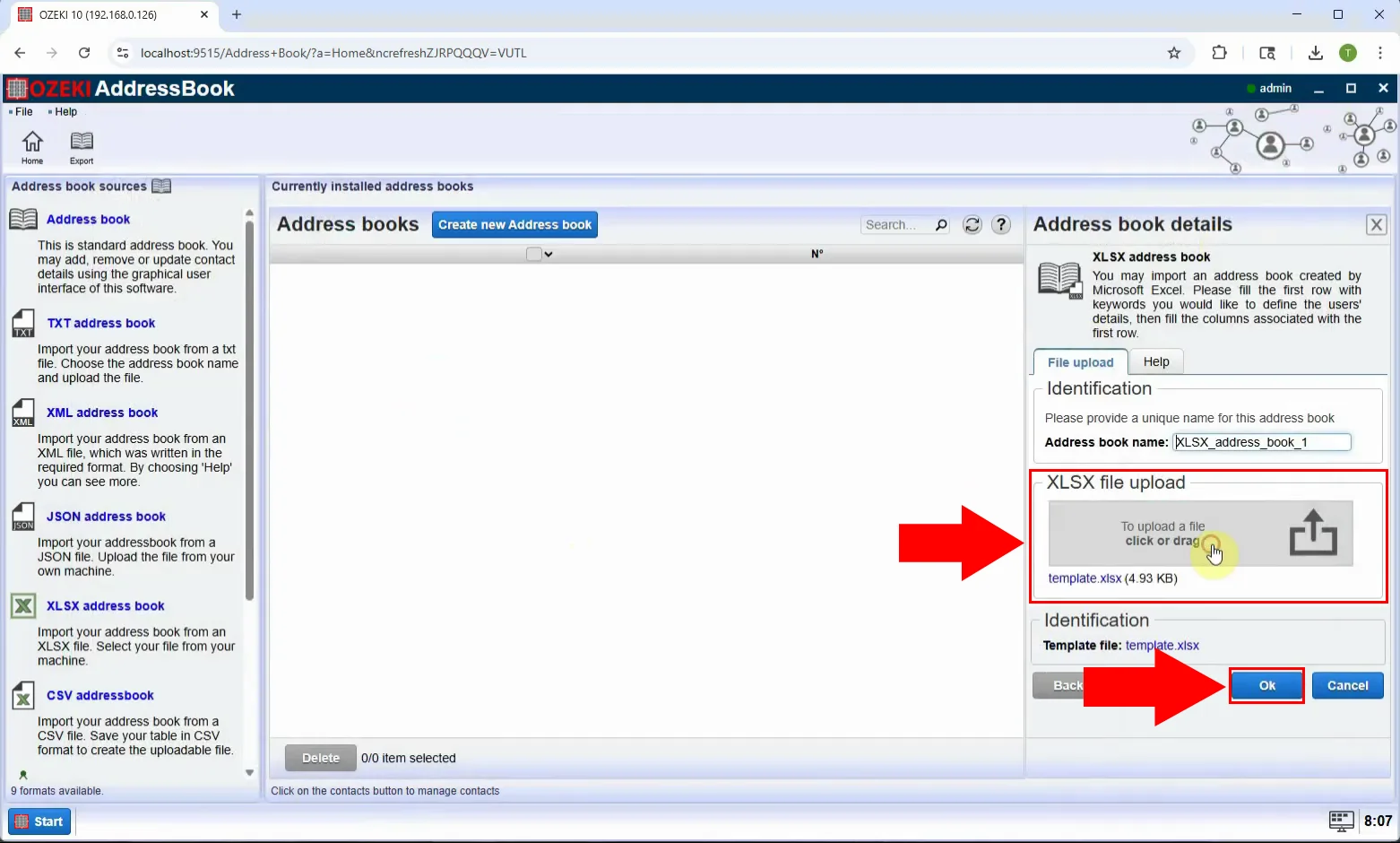
Choose the prepared XLSX file from your computer. Upload it through the Address Book import screen. Wait for Ozeki SMS Gateway to finish processing it.
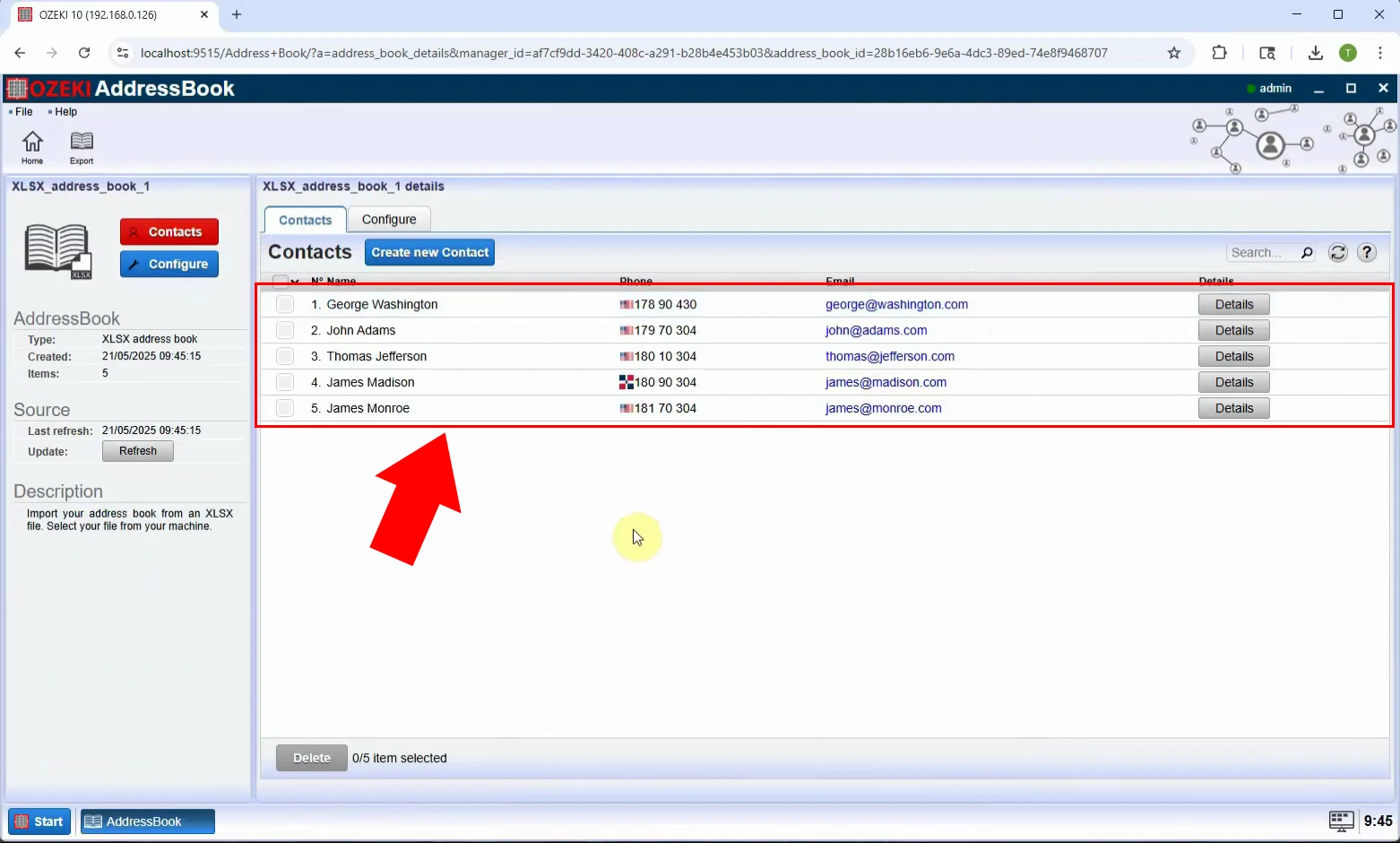
Check that the new address book appears after the upload. Open it to confirm the import completed. If it is missing, review the file and try again.
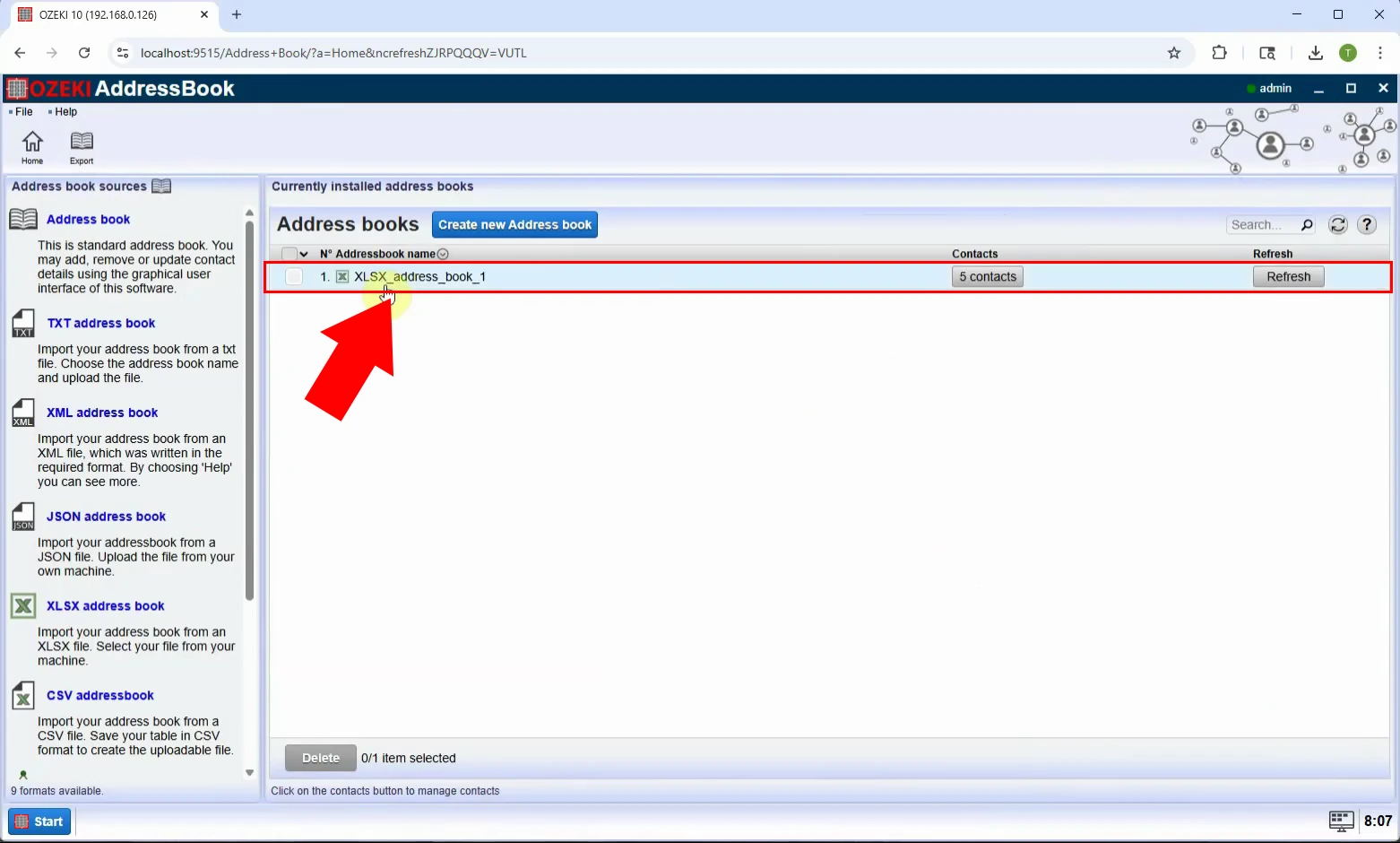
View the contacts in the imported address book. Check their names and phone numbers against your spreadsheet. The address book is ready to use once the entries are correct.