How to configure Ozeki SMS Gateway to provide Kannel API
This guide explains how to configure Ozeki SMS Gateway as a Kannel-compatible SMSBox service, allowing existing Kannel-based applications to submit SMS messages through a familiar HTTP API. You will create and enable a Kannel user, configure secure credentials and logging, then verify the integration with both a curl request and the Ozeki Kannel client.
How to configure Ozeki SMS Gateway Kannel SMSBox user
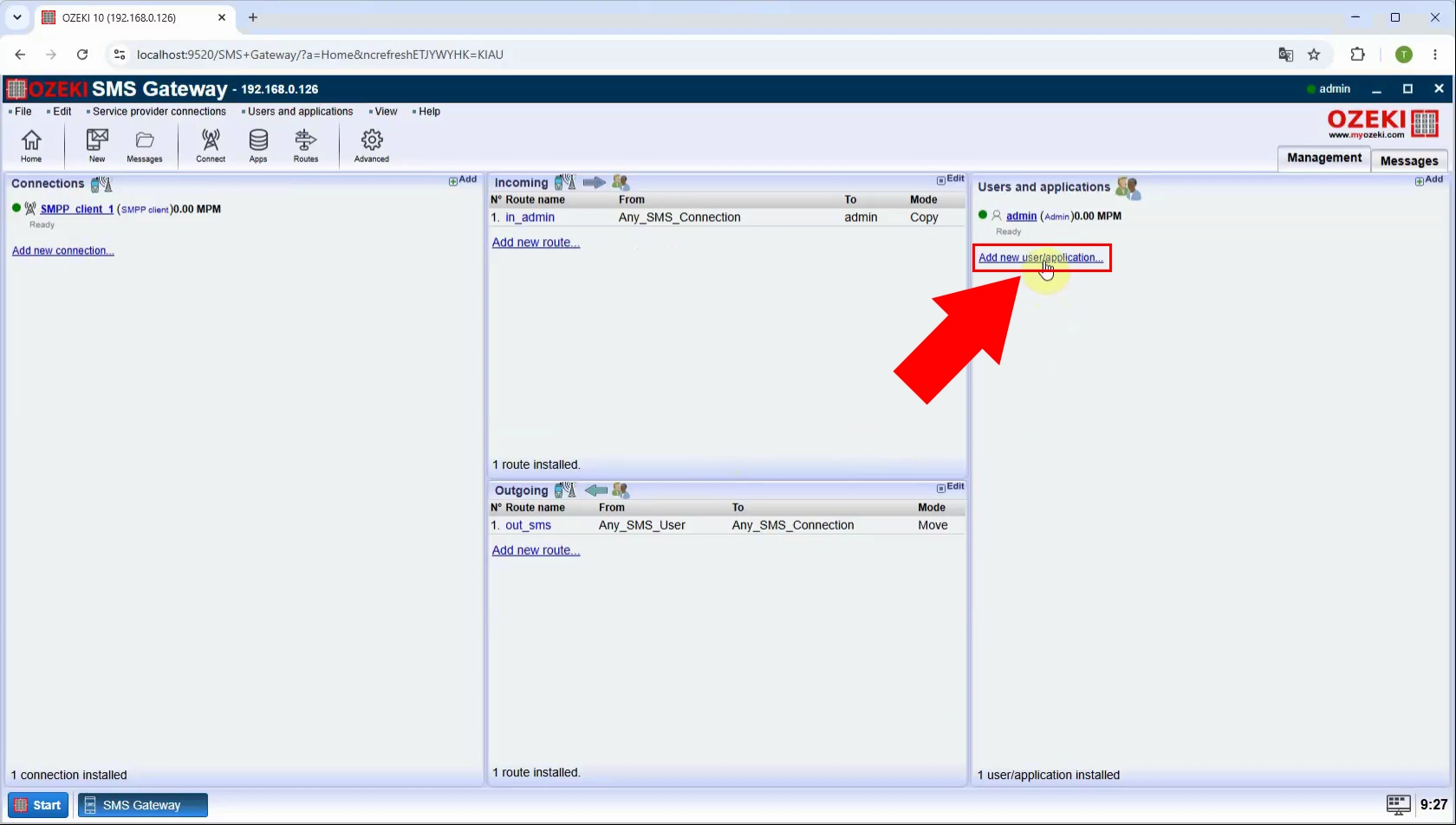
Open the Ozeki SMS Gateway management interface and start creating a new user or application connection. This user will represent the Kannel-compatible SMSBox endpoint and controls API authentication and permissions. Choose the option to add an application-type user before proceeding with the Kannel-specific setup.
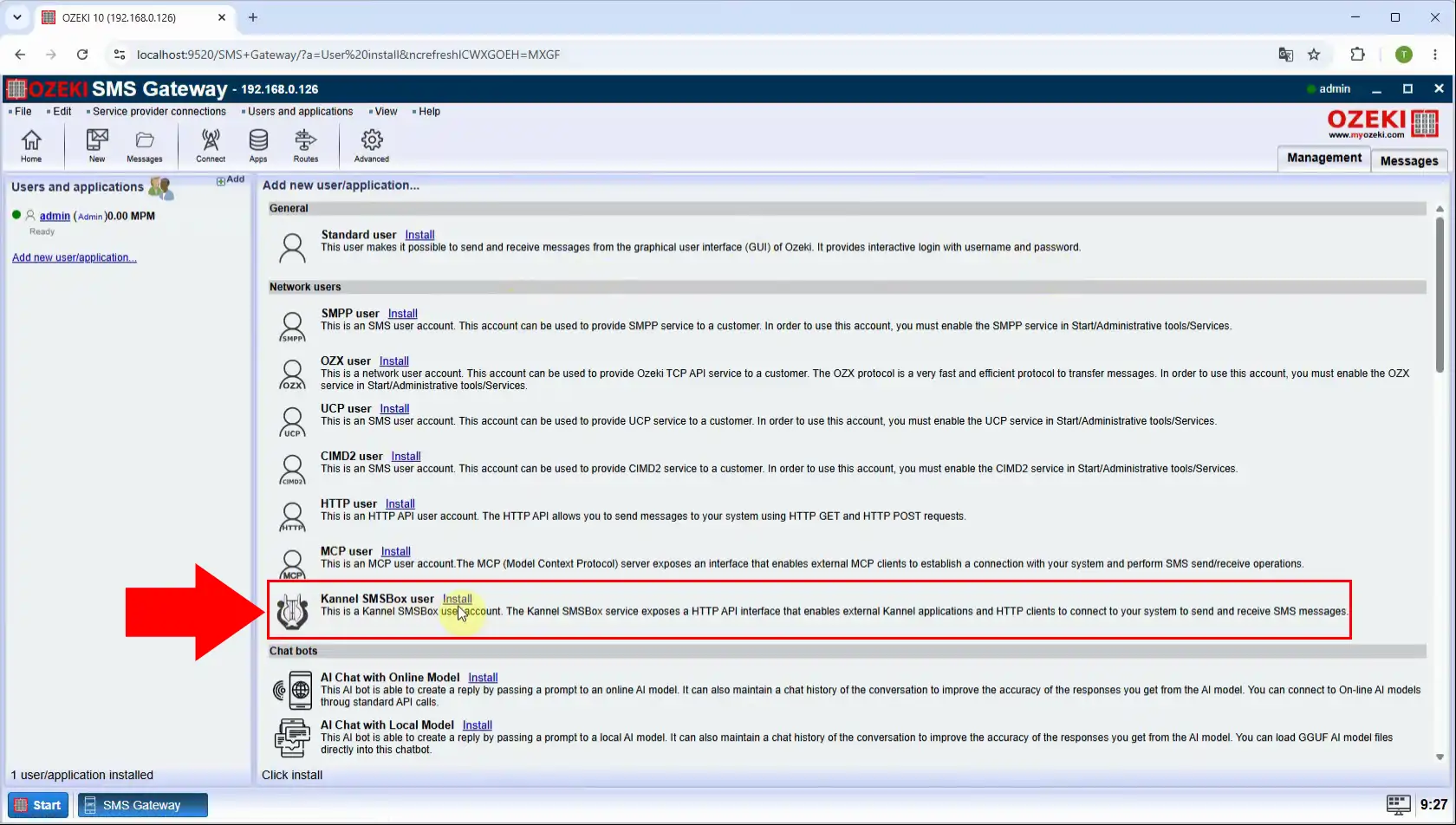
Select the Kannel user type from the available installation options. This adds the compatibility layer that accepts Kannel-style HTTP API requests within Ozeki SMS Gateway. Complete the installation so the new user can be configured with credentials and operational settings.
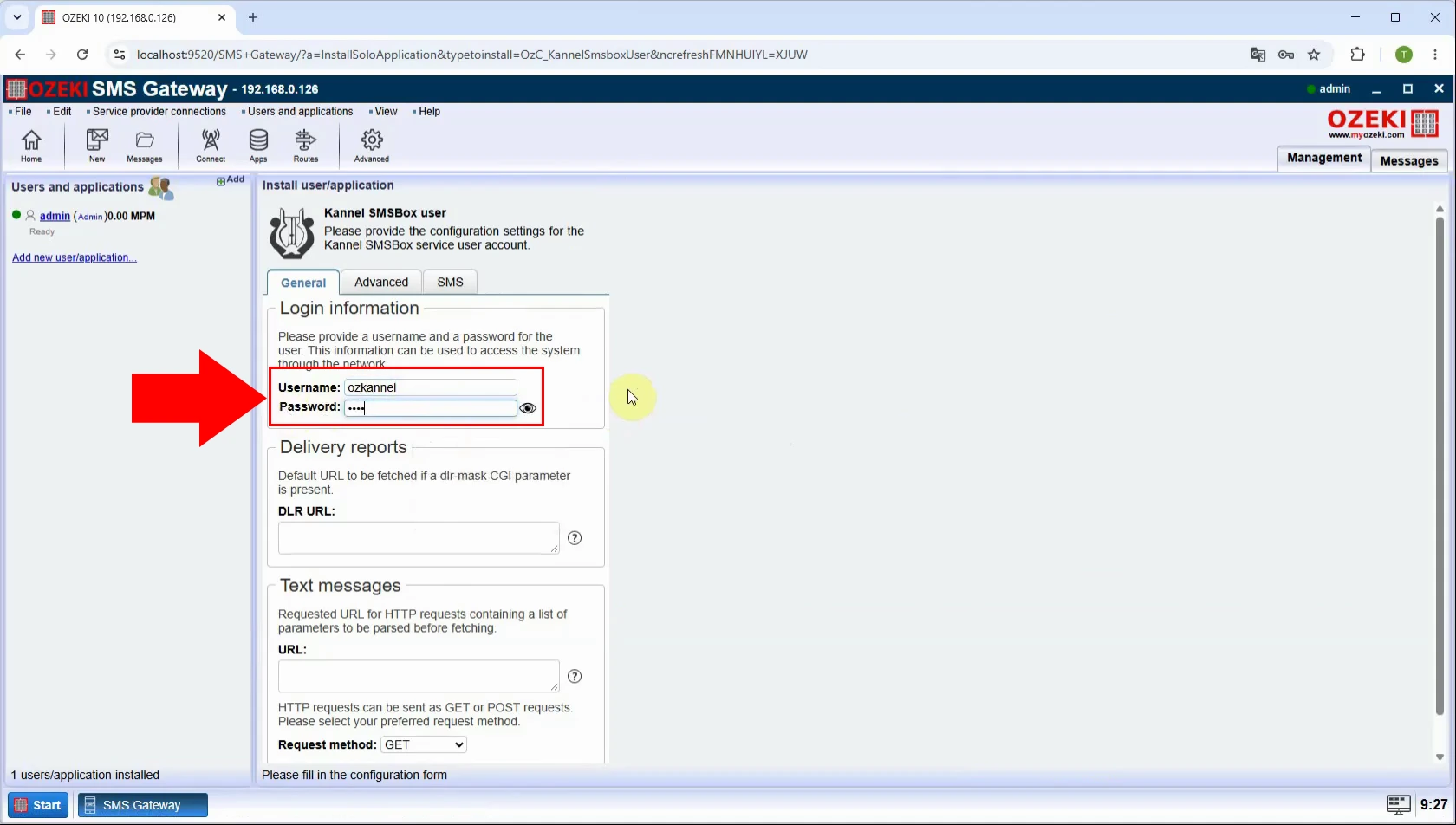
Set a dedicated username and a strong password for the Kannel API user. Kannel clients must supply these credentials when calling the Ozeki endpoint to submit SMS messages. Use credentials that are unique to this integration and store them securely in the client configuration.
Turn on logging for the Kannel user to record incoming API requests and message-processing events. The logs help validate authentication, troubleshoot malformed requests, and trace SMS submission outcomes. Use this information during initial testing and retain only the log detail appropriate for your security policy.
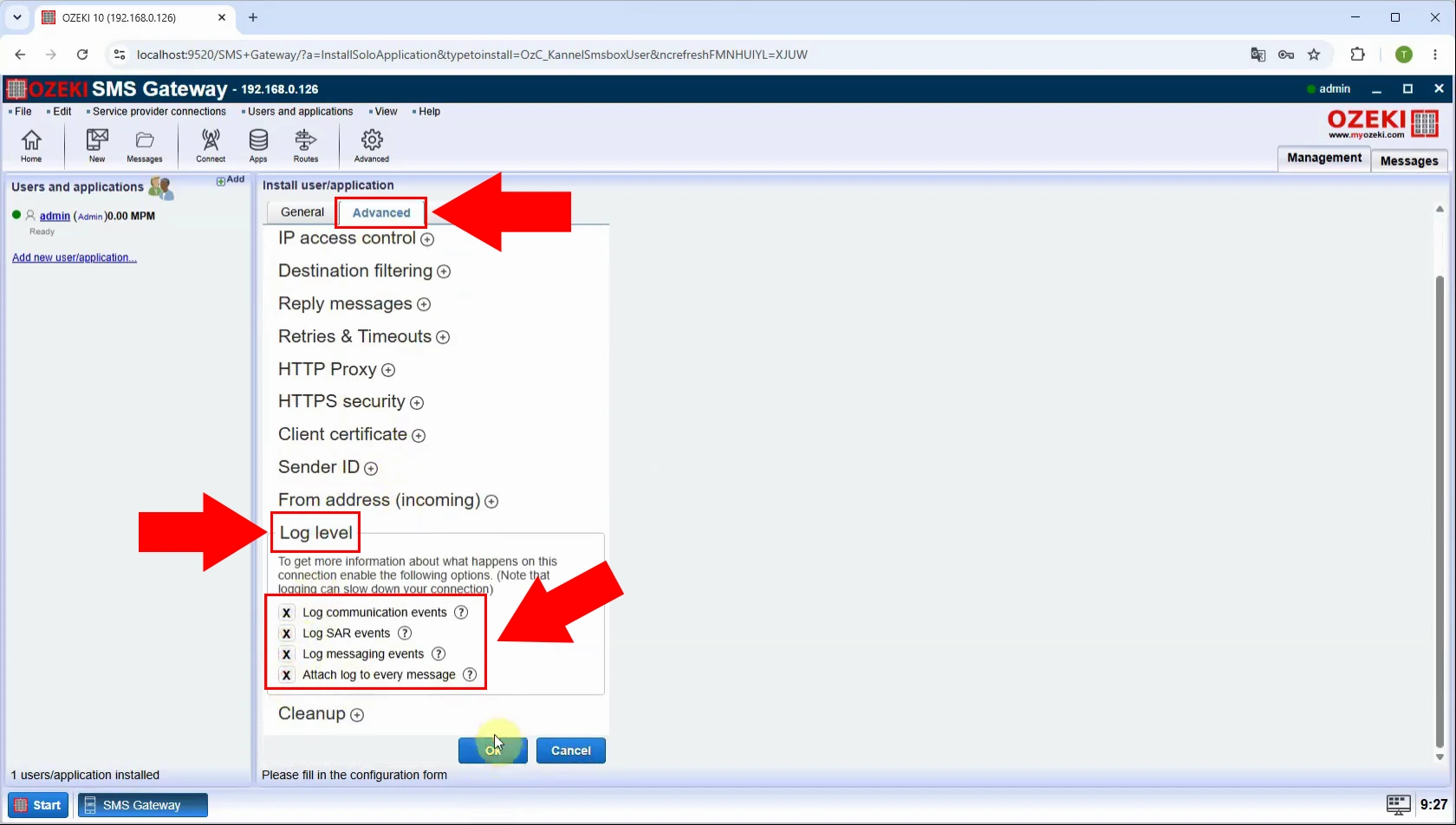
Enable the configured Kannel user so that Ozeki begins accepting requests through its Kannel-compatible API. A disabled user cannot process client submissions, even when its URL and credentials are correct. Confirm that the user status is active before testing with curl or an Ozeki Kannel client.
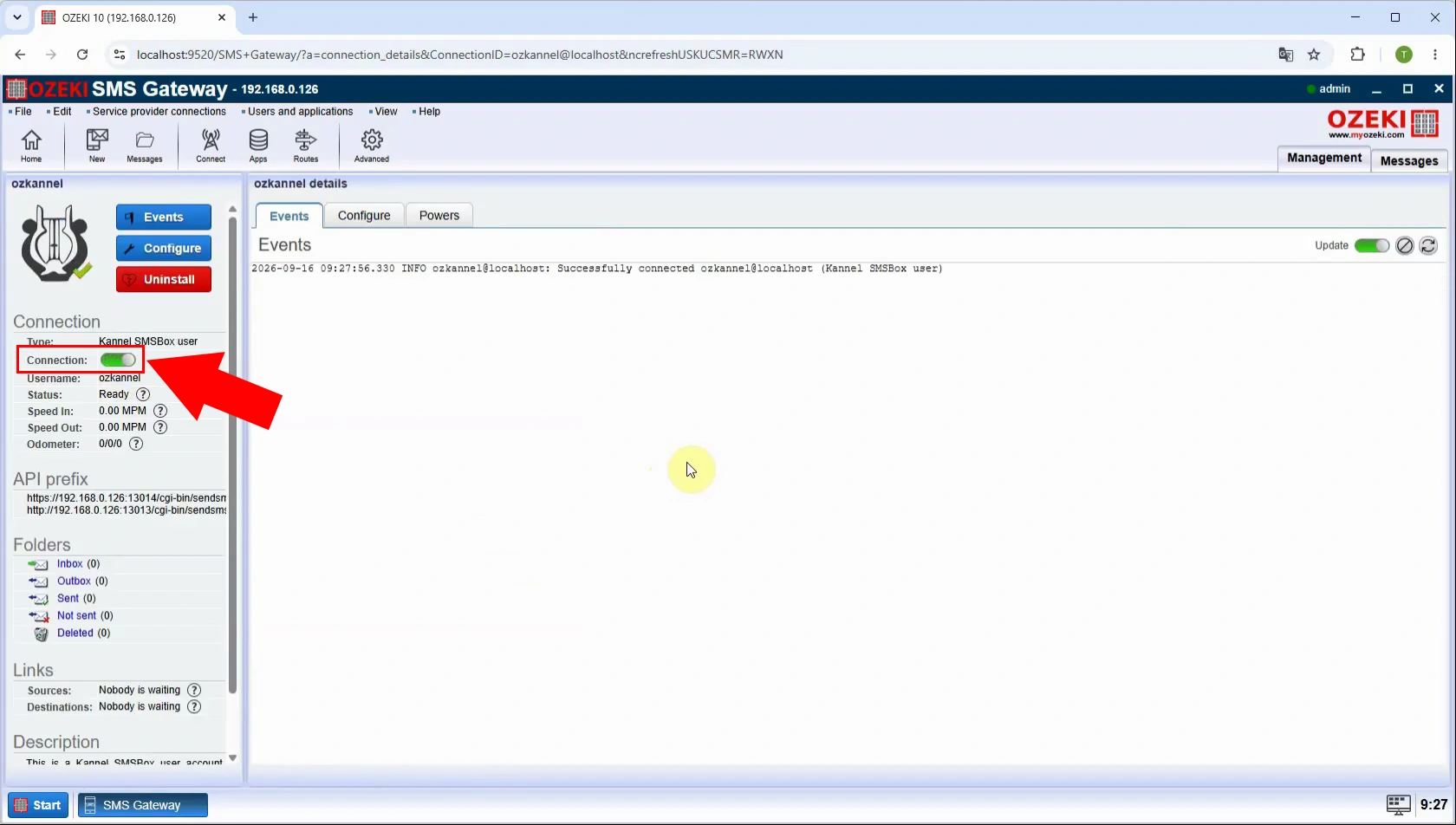
The completed configuration creates an active Kannel API access point in Ozeki SMS Gateway. At this point, compatible applications can authenticate with the assigned username and password and submit SMS traffic. The next step is to verify the endpoint URL and perform an actual message-submission test.
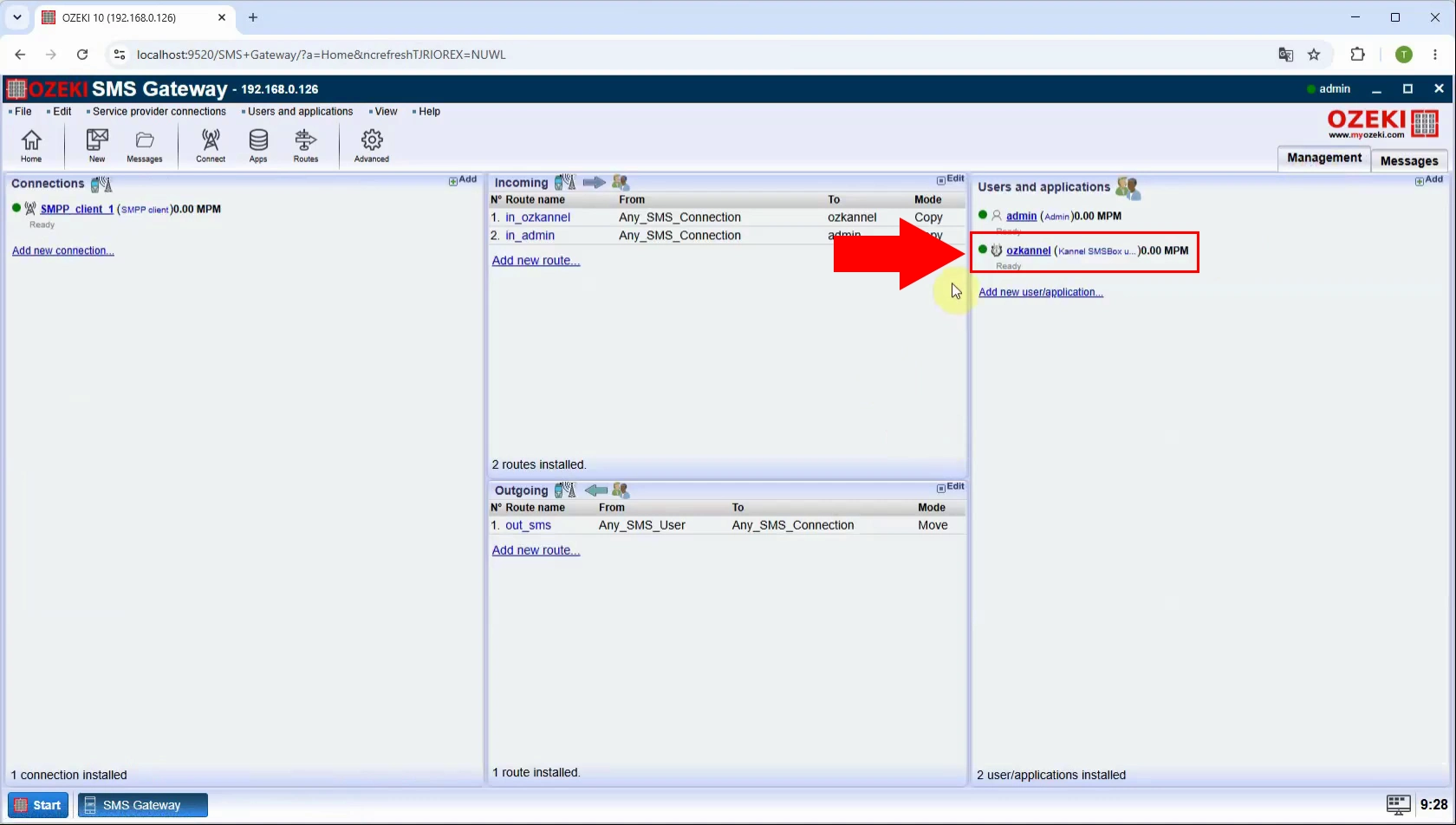
How to test with curl
Identify the base URL displayed for the configured Kannel API user. This address is the target that Kannel-compatible clients and curl commands use to reach Ozeki SMS Gateway. Verify the hostname, port, protocol, and network accessibility from the machine that will send requests.
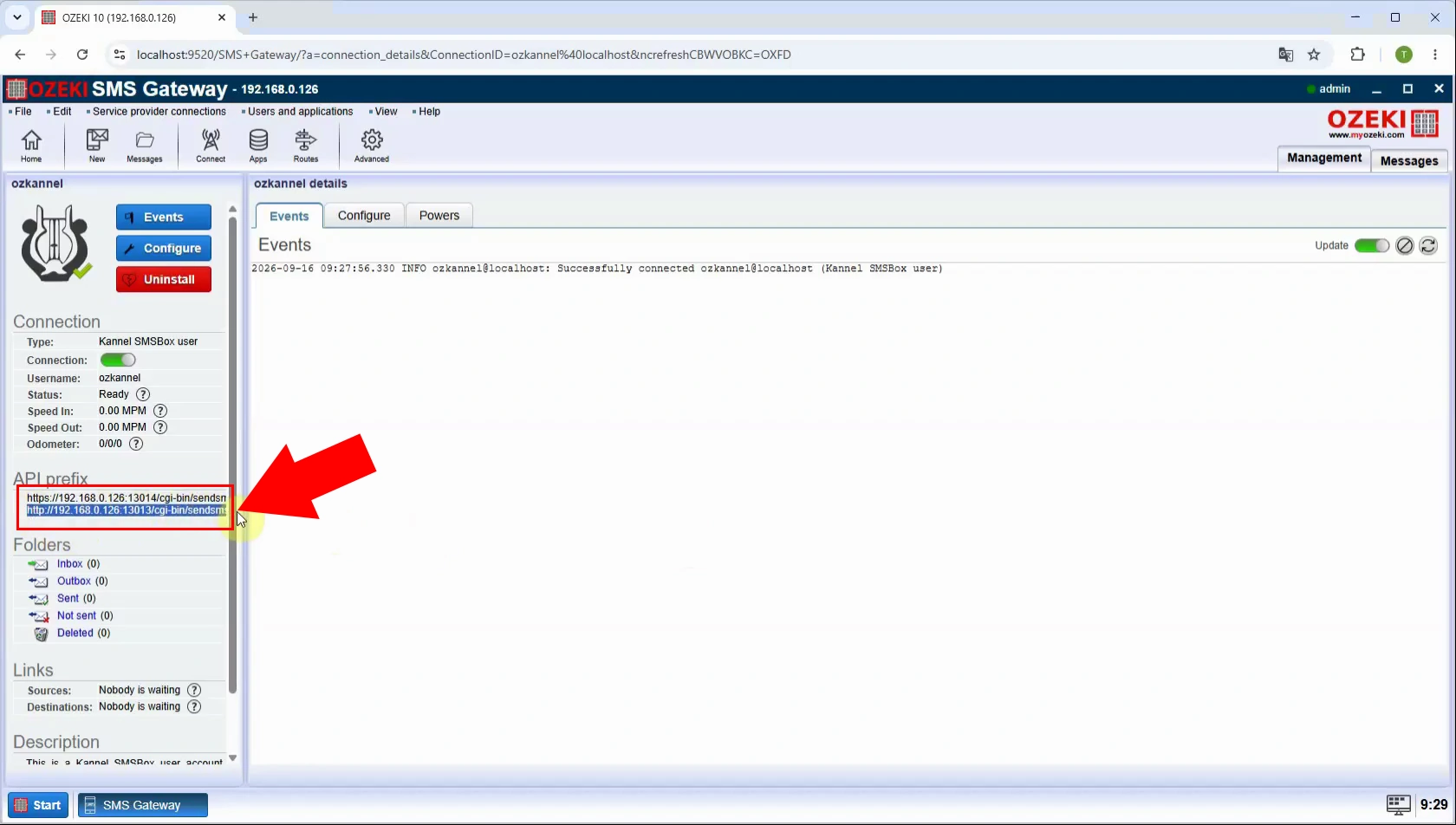
Use curl to send a test SMS through the Kannel-compatible HTTP endpoint using the configured credentials. Include the required request parameters, such as recipient phone number and message text, in the API call. A successful response confirms that the URL, authentication, and basic API submission flow are working.
curl --location "http://localhost:13013/cgi-bin/sendsms?username=ozkannel&password=test&to=358401234567&from=12345&text=Hello+from+Curl"
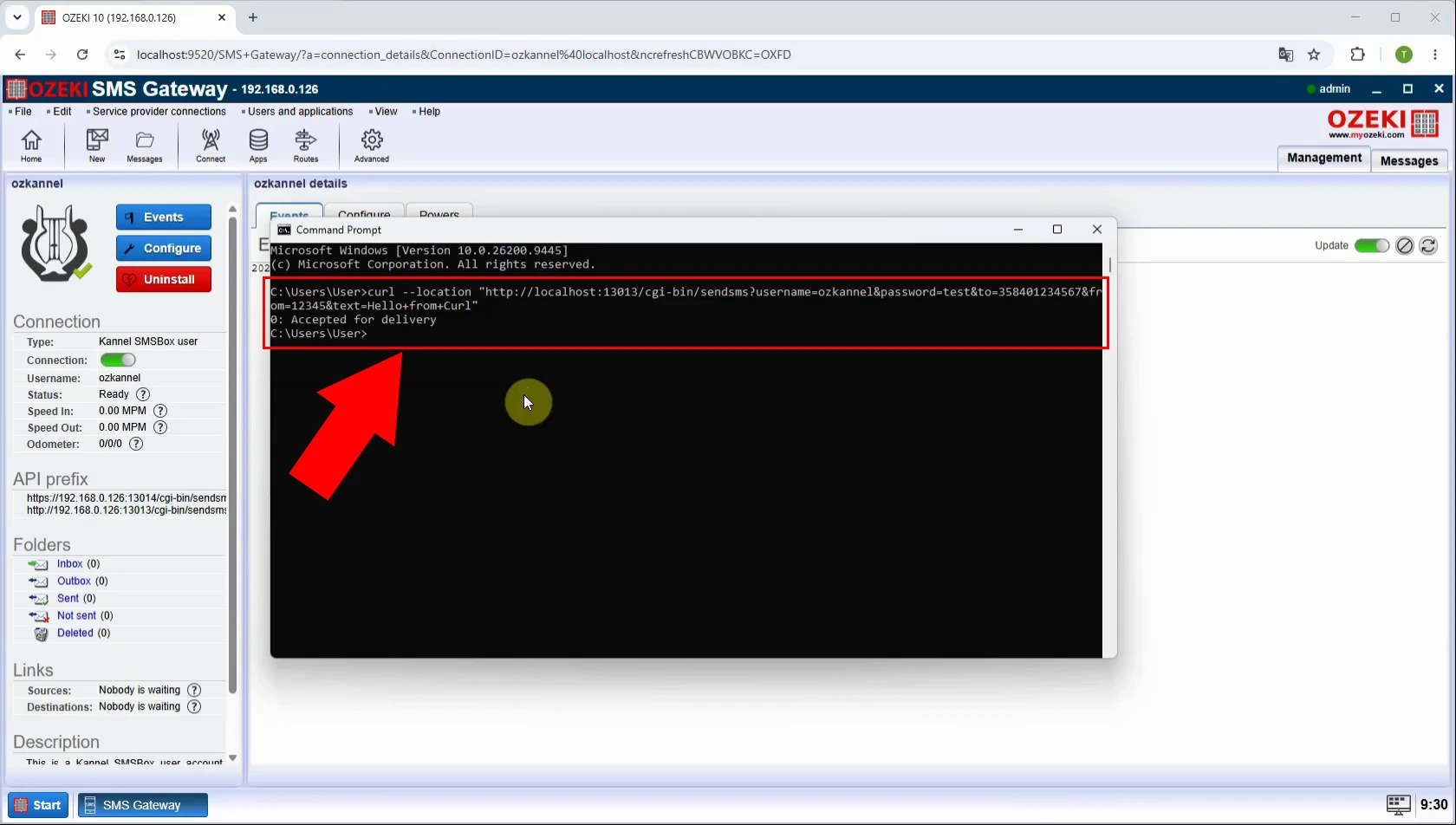
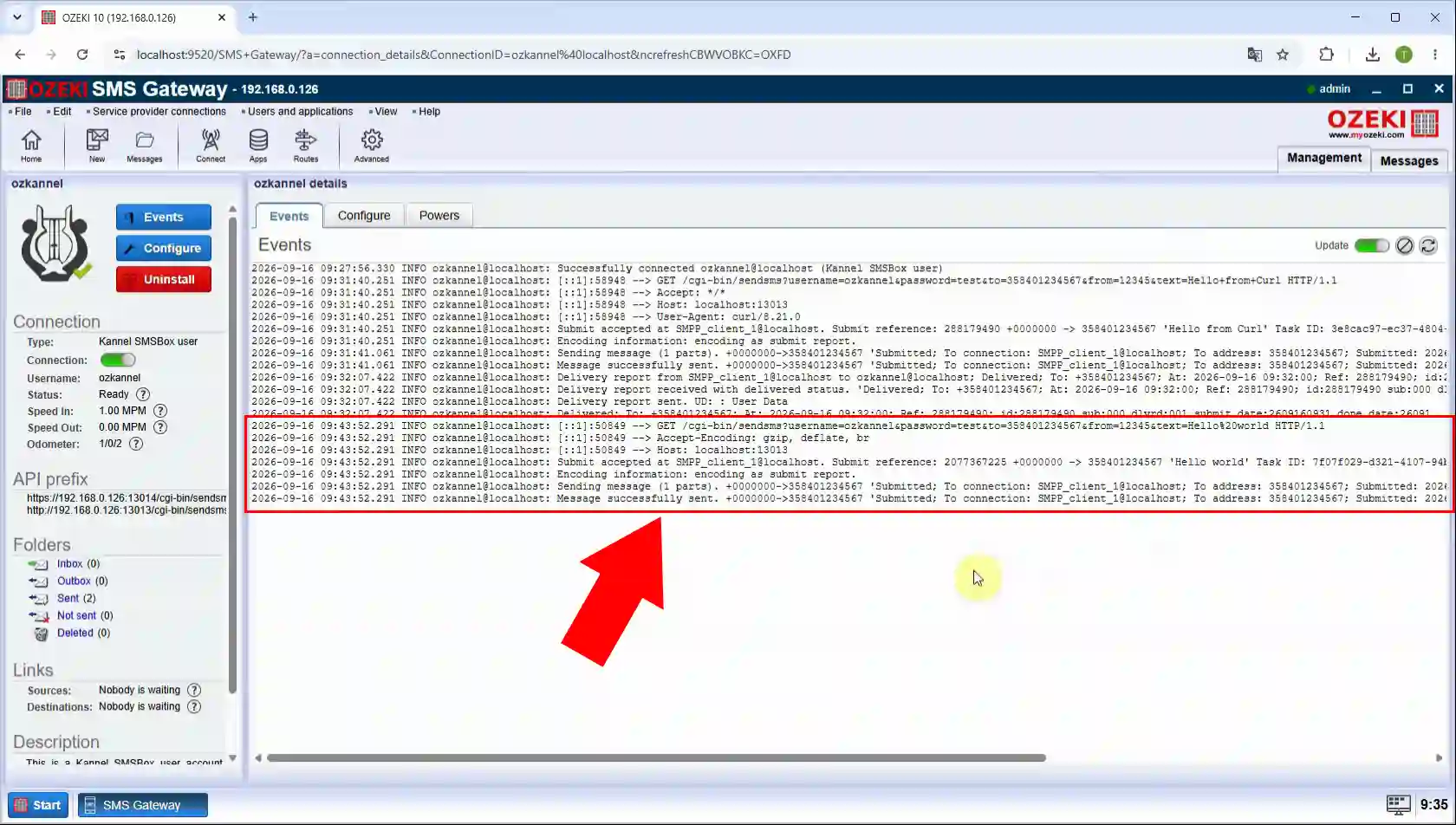
Review the Ozeki SMS Gateway log after submitting the curl test message. The log should show the received request and subsequent processing of the outbound SMS. If the message fails, use the recorded details to isolate authentication, routing, or provider-side issues.
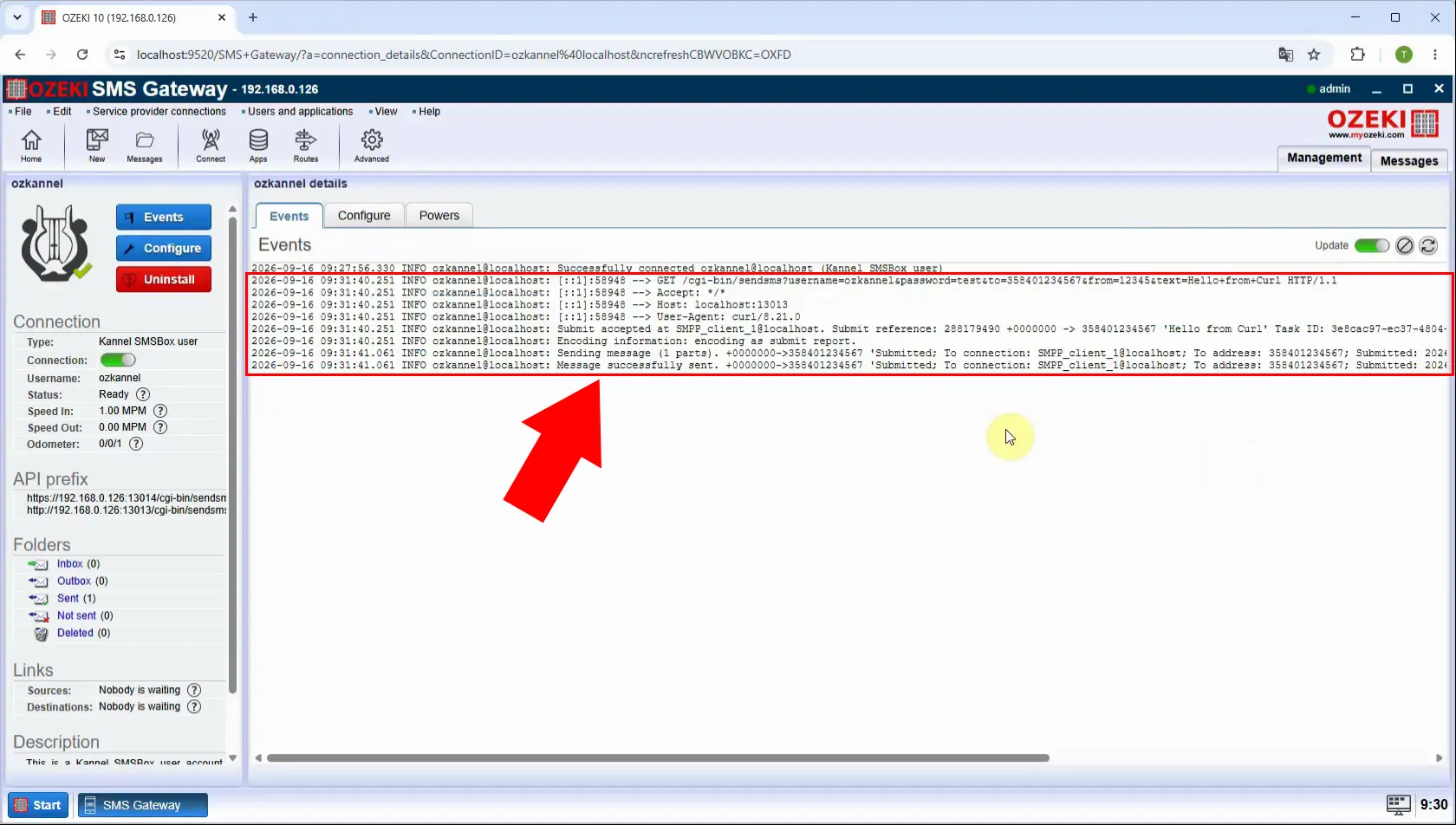
How to test with Ozeki client
Kannel API compatibility tester clientTo test Kannel API compatibility in Ozeki, you can download this free open source HTTP API tester client app. This was developed to verify the Kannel API functionality.
Download: kannel-client.zip (297Kb)
Launch the Ozeki Kannel client to test the API through a graphical client application. This provides an alternative to curl for validating connection settings and submitting a sample message. Ensure the client can reach the same Ozeki SMS Gateway host that exposes the Kannel-compatible endpoint.
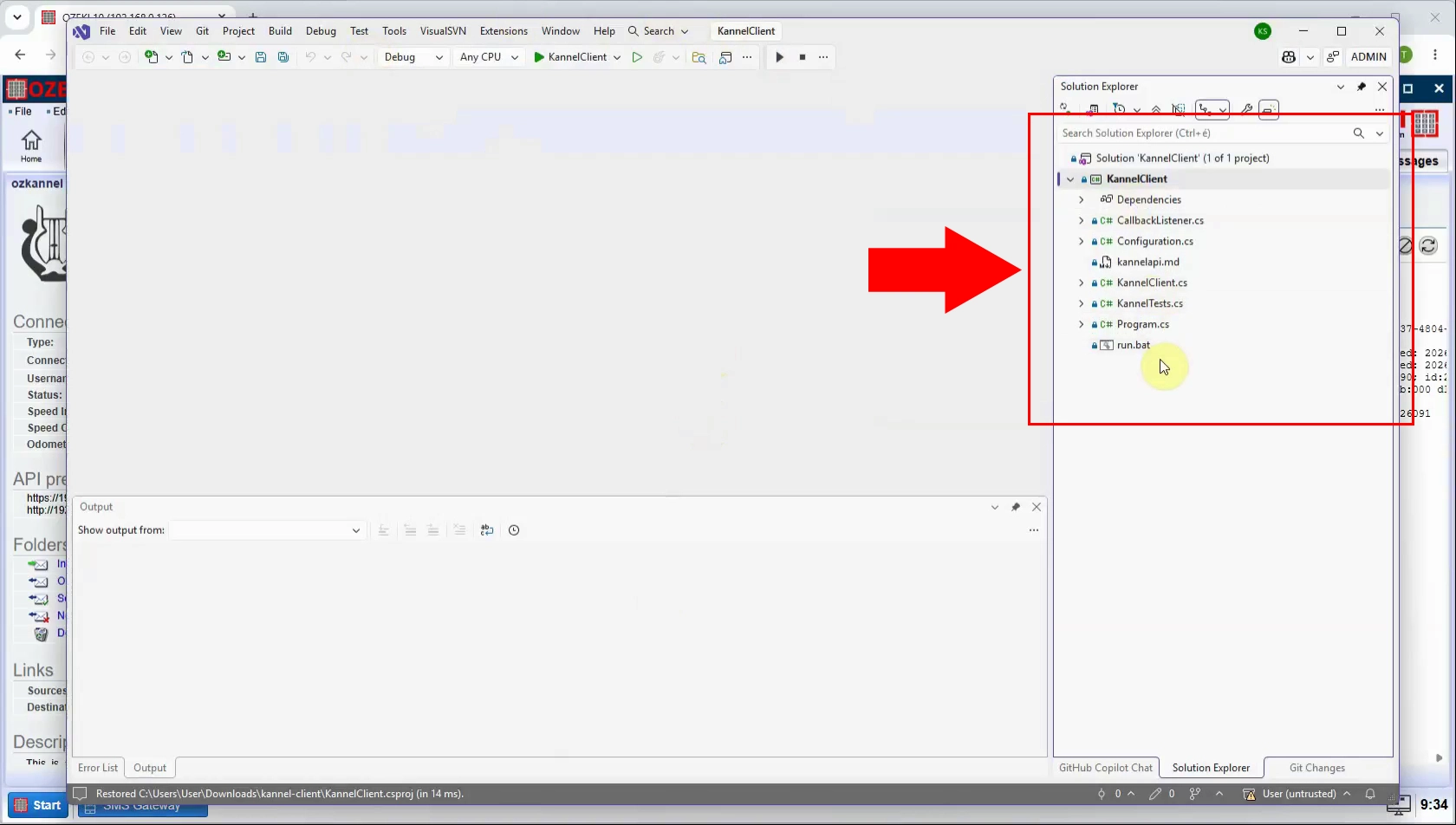
Enter the Ozeki server address, Kannel API credentials, and any required connection settings in the client. The values must match the Kannel user created earlier in Ozeki SMS Gateway. Save the configuration so the client can authenticate and send requests to the correct API endpoint.
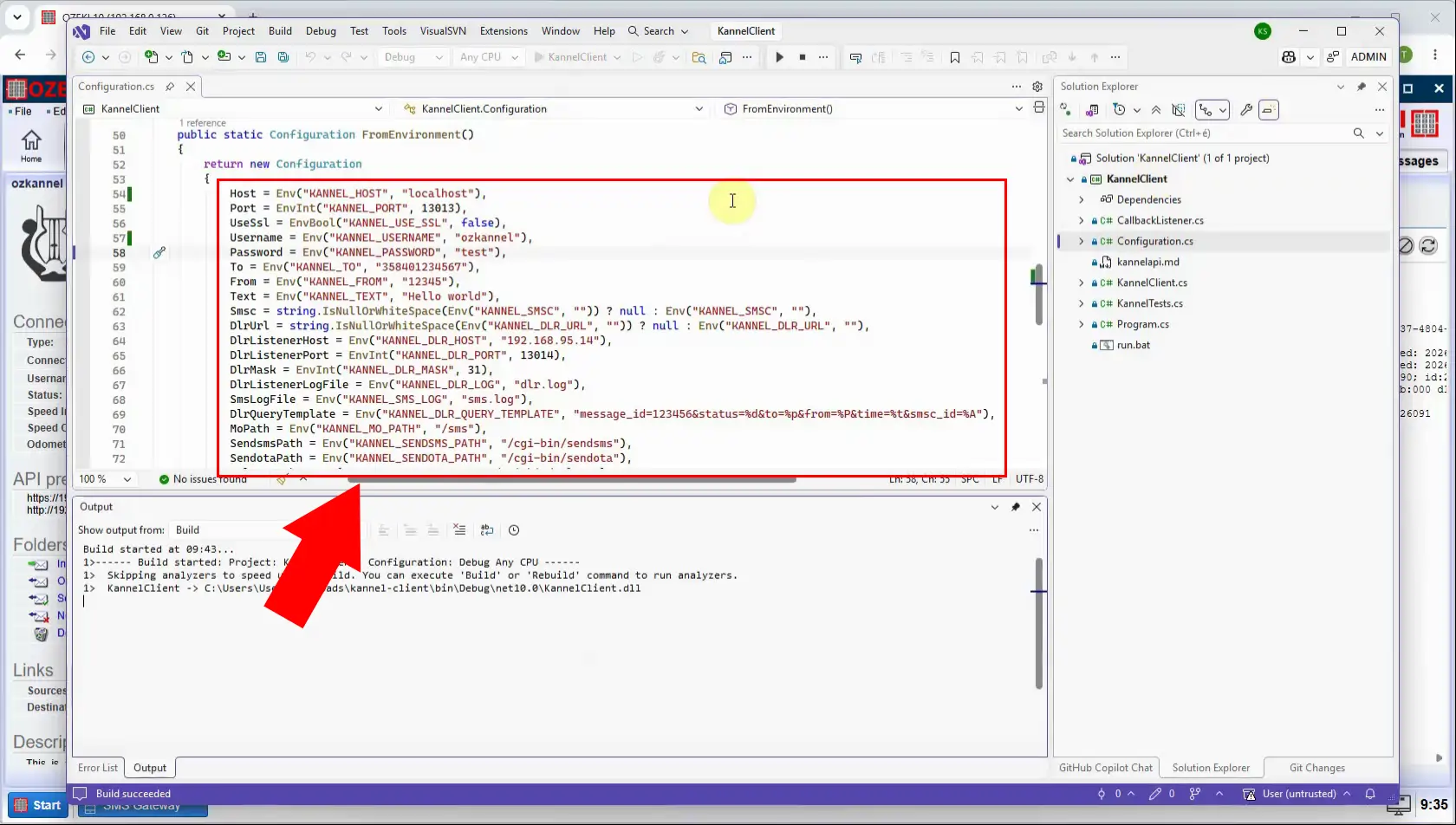
Compose a test message in the Ozeki Kannel client and provide a valid recipient number. Send it through the configured connection to verify that the graphical client can use the Kannel-compatible API. Successful submission demonstrates that the client configuration and gateway-side Kannel user work together.
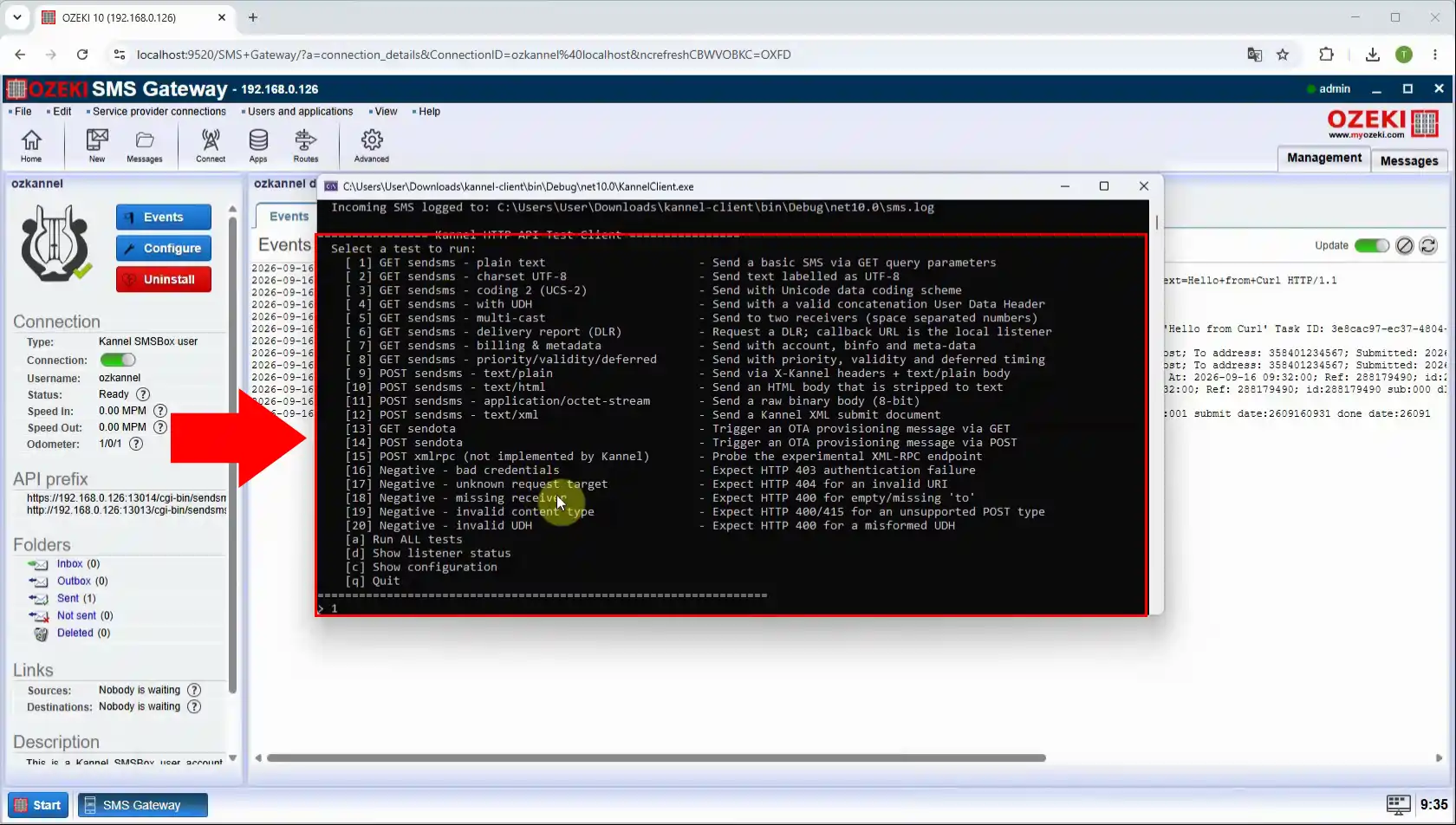
Check the Ozeki SMS Gateway message log after sending the test SMS from the Kannel client. The entry confirms receipt of the API request and shows the gateway’s handling of the outbound message. Use the log to confirm delivery processing or diagnose any routing, connectivity, or provider errors.