Send SMS using LDAP address book
This guide explains how to configure and use an LDAP address book in Ozeki SMS Gateway to send SMS messages directly to directory contacts. By integrating your LDAP server (such as Active Directory or OpenLDAP) with the gateway, you can dynamically look up recipients by name or attribute, map LDAP fields to phone numbers, and compose messages to one or multiple directory entries without manually entering numbers. The following steps cover creating an LDAP address book, setting up connection and attribute mapping, selecting LDAP contacts as recipients, and verifying successful message delivery.
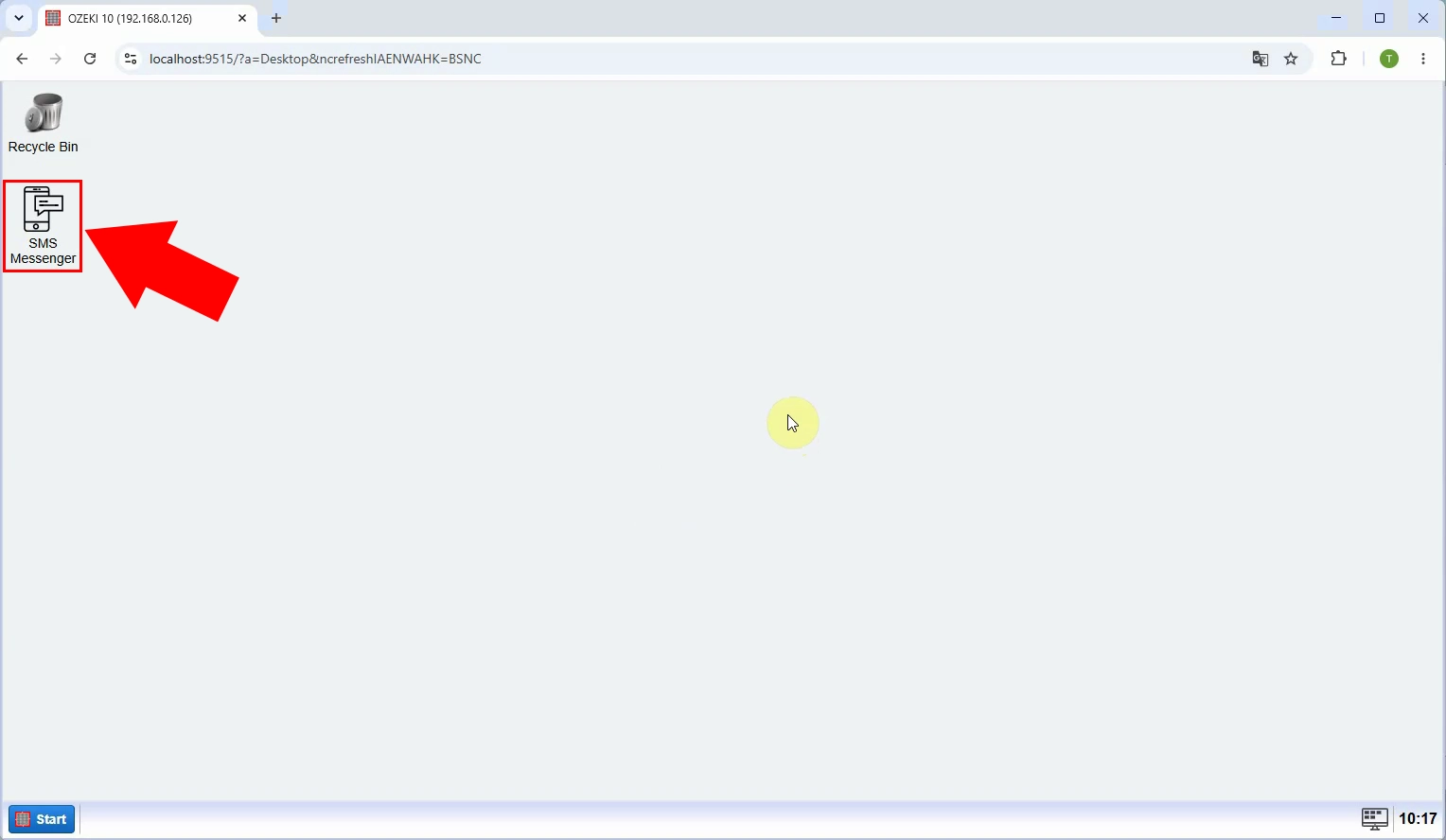
Launch Ozeki SMS Gateway and log in as an authorized user. From the main dashboard, navigate to the “SMS Messenger” module. This interface provides access to messaging functions, including address book integration. Ensure your user account has permissions to create and use LDAP-based contact sources.
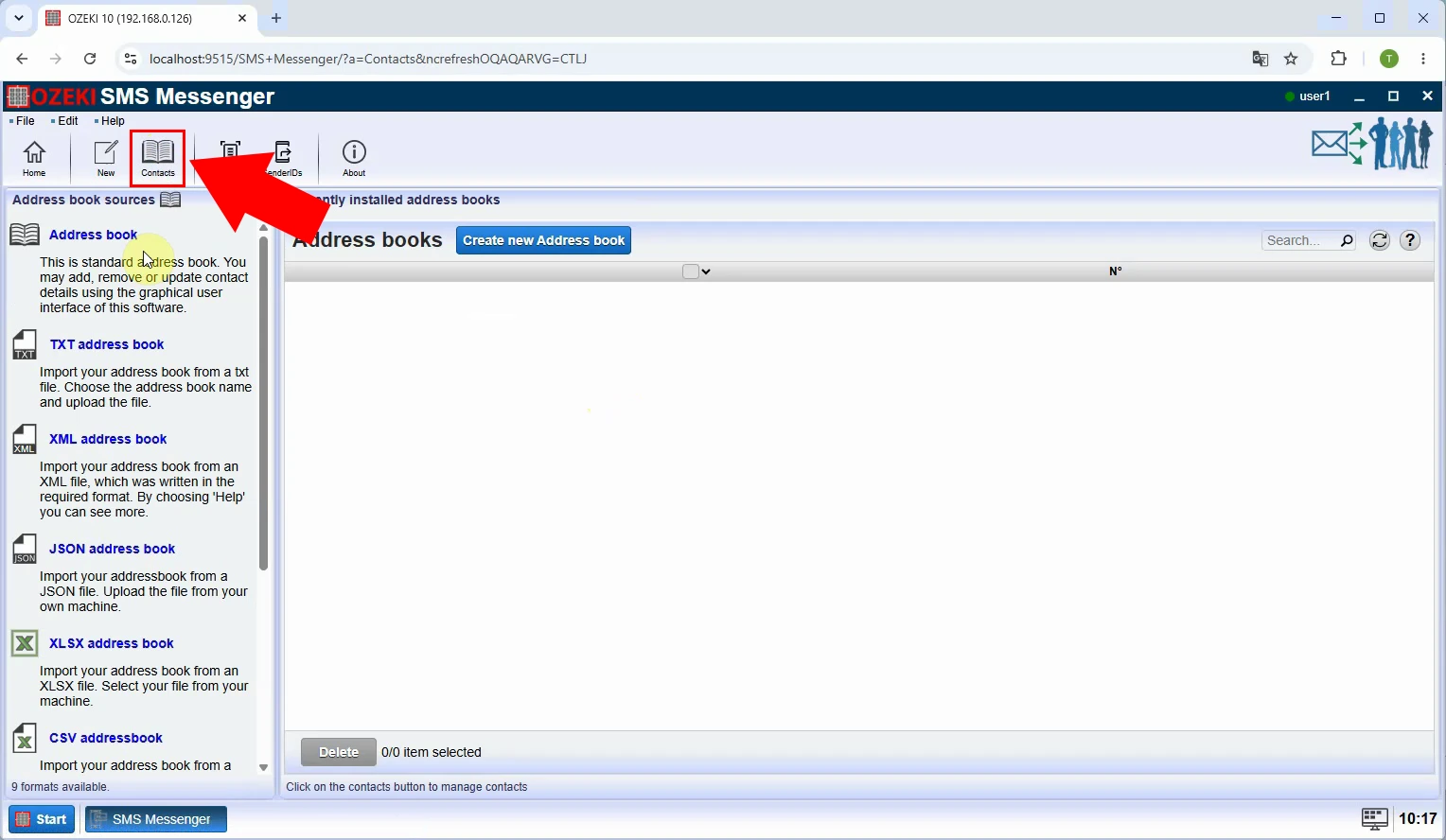
Within SMS Messenger, locate and click the “Contacts” menu in the left navigation panel. This opens the address book management view where you can create, edit, or import contact sources. Selecting this menu is required before configuring any external directory such as LDAP for recipient lookup.
In the Contacts view, choose the option to create a new address book. From the list of supported types (TXT, XML, JSON, CSV, XLSX, LDAP), select “LDAP address book”. This tells the gateway to pull contact data from an external LDAP directory instead of a local or file-based source.
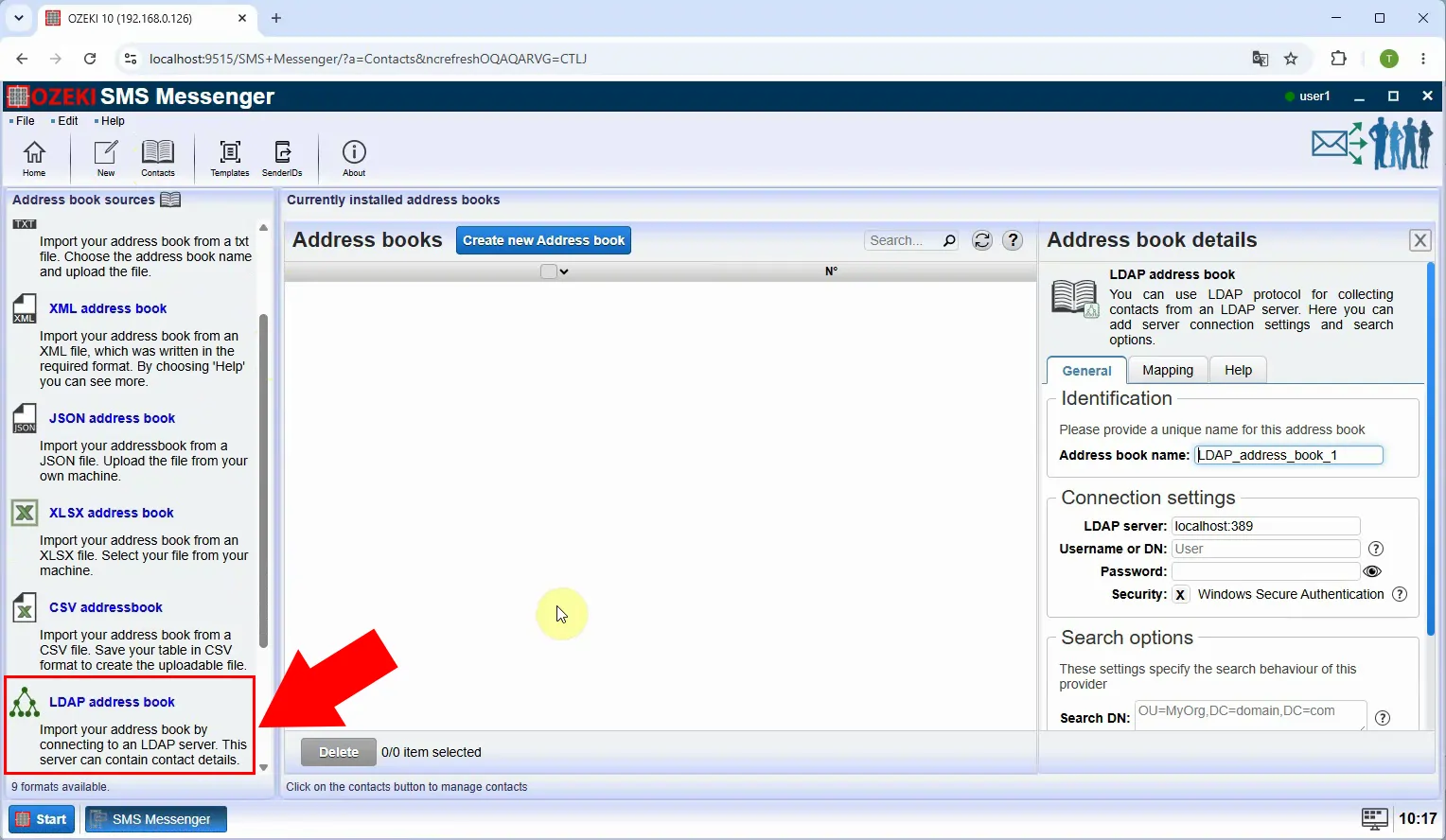
Enter the LDAP server connection details: host IP or hostname, port (usually 389 or 636 for LDAPS), base DN (e.g., dc=example,dc=com), and bind credentials (username/password). These settings allow Ozeki to authenticate and query your LDAP directory. Test the connection if the interface provides a “Test” button.
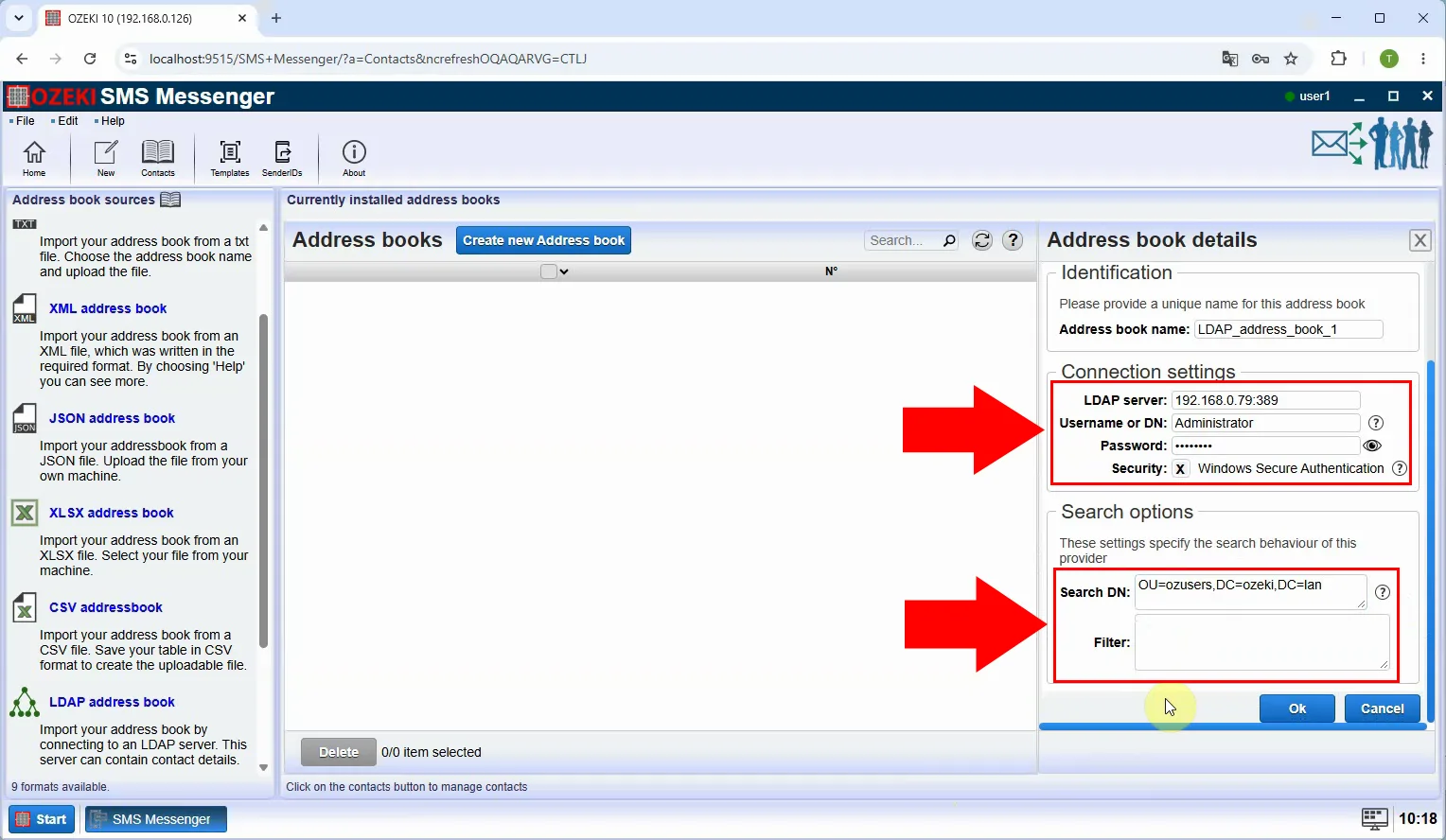
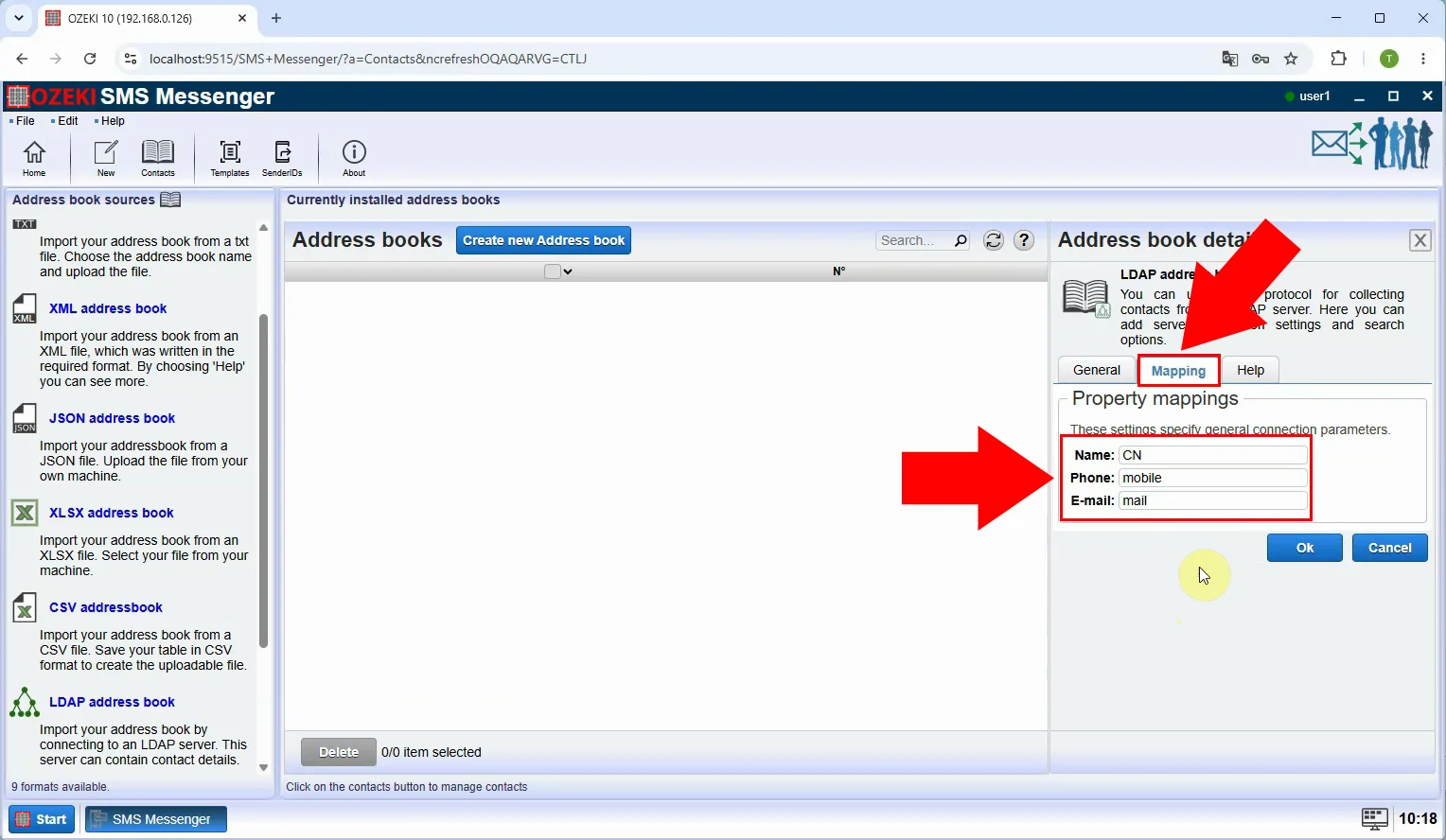
Map LDAP attributes to Ozeki contact fields: typically map an attribute like “telephoneNumber” or “mobile” to the phone number field, and “cn” or “displayName” to the contact name. This ensures the gateway correctly interprets directory entries as SMS recipients. Save the mapping configuration once verified.
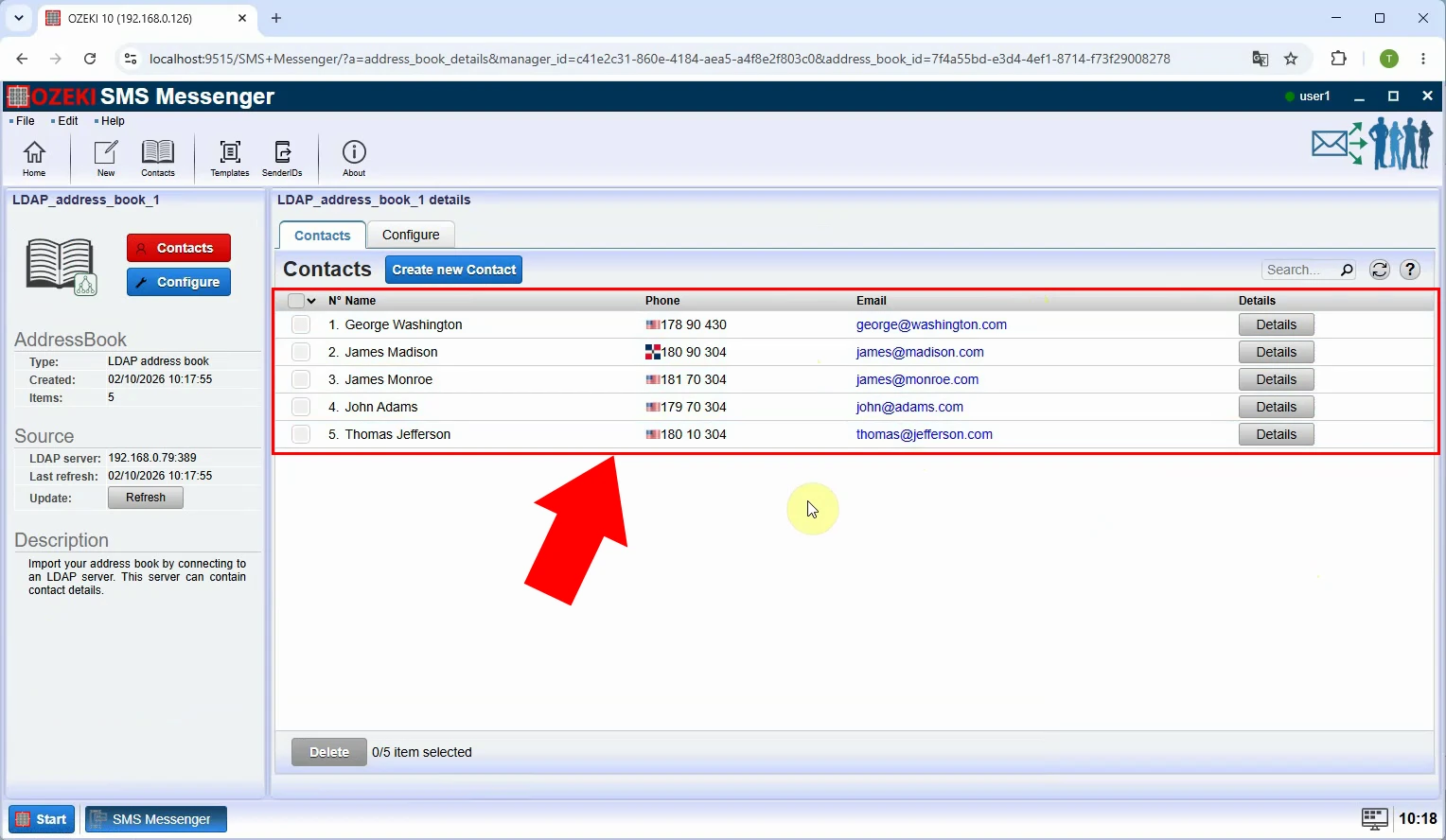
After saving the connection and mapping, the LDAP address book appears in your Contacts list with a status indicating it is active. You can now browse or search LDAP contacts directly from Ozeki. The gateway will dynamically query the directory when this address book is used as an SMS recipient source.
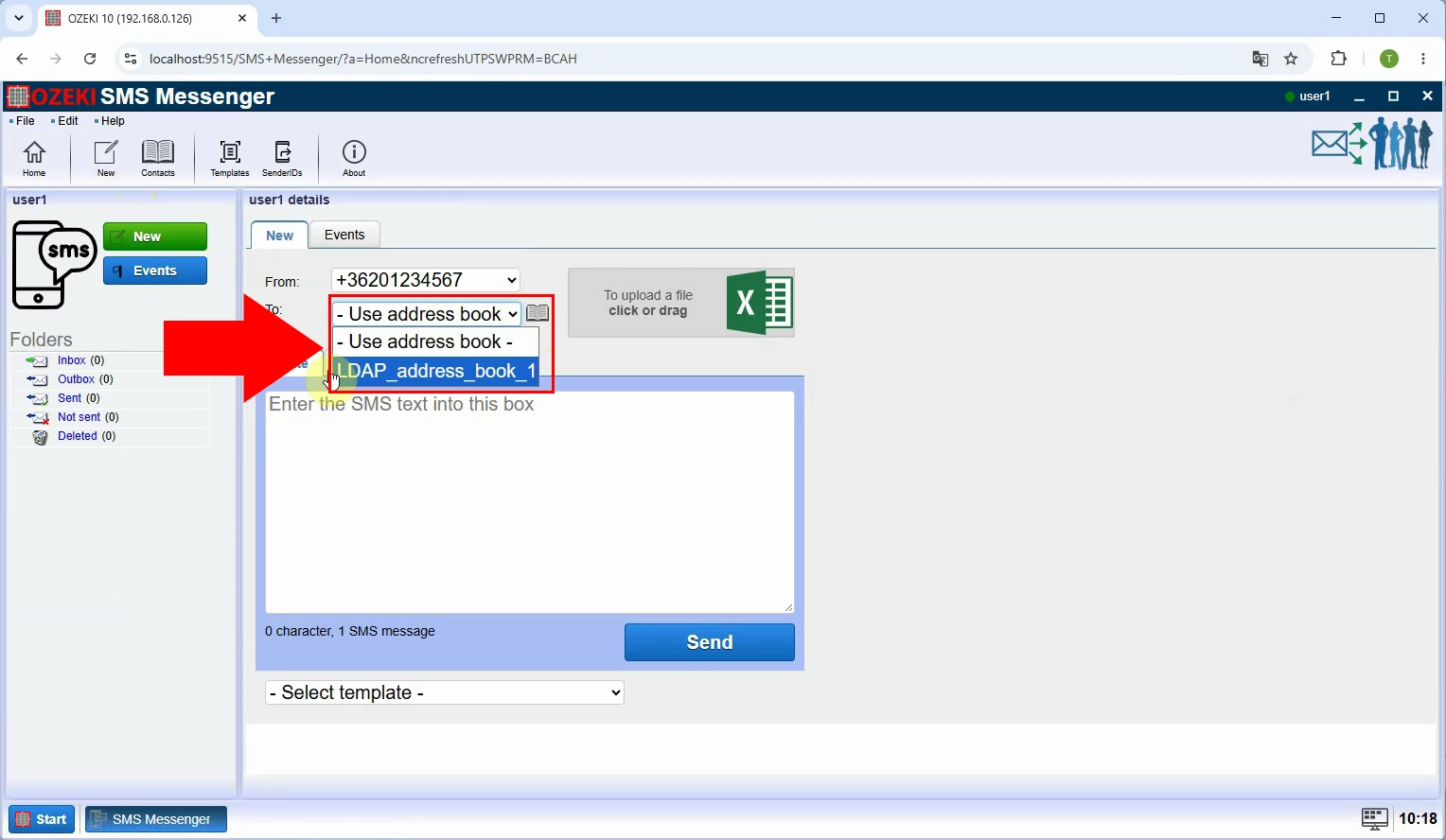
Return to the SMS composition screen. In the “To” or recipient field, click the address book selector and choose your newly created LDAP address book. You can then search or select one or more LDAP contacts as recipients. This links the outgoing message to live directory data.
Compose your SMS text in the message body field, optionally using personalization tokens if supported. Verify the selected LDAP recipients are correct, then click the “Send” button. The gateway will resolve each contact’s phone number from LDAP and queue the messages for delivery via your configured SMS connection.
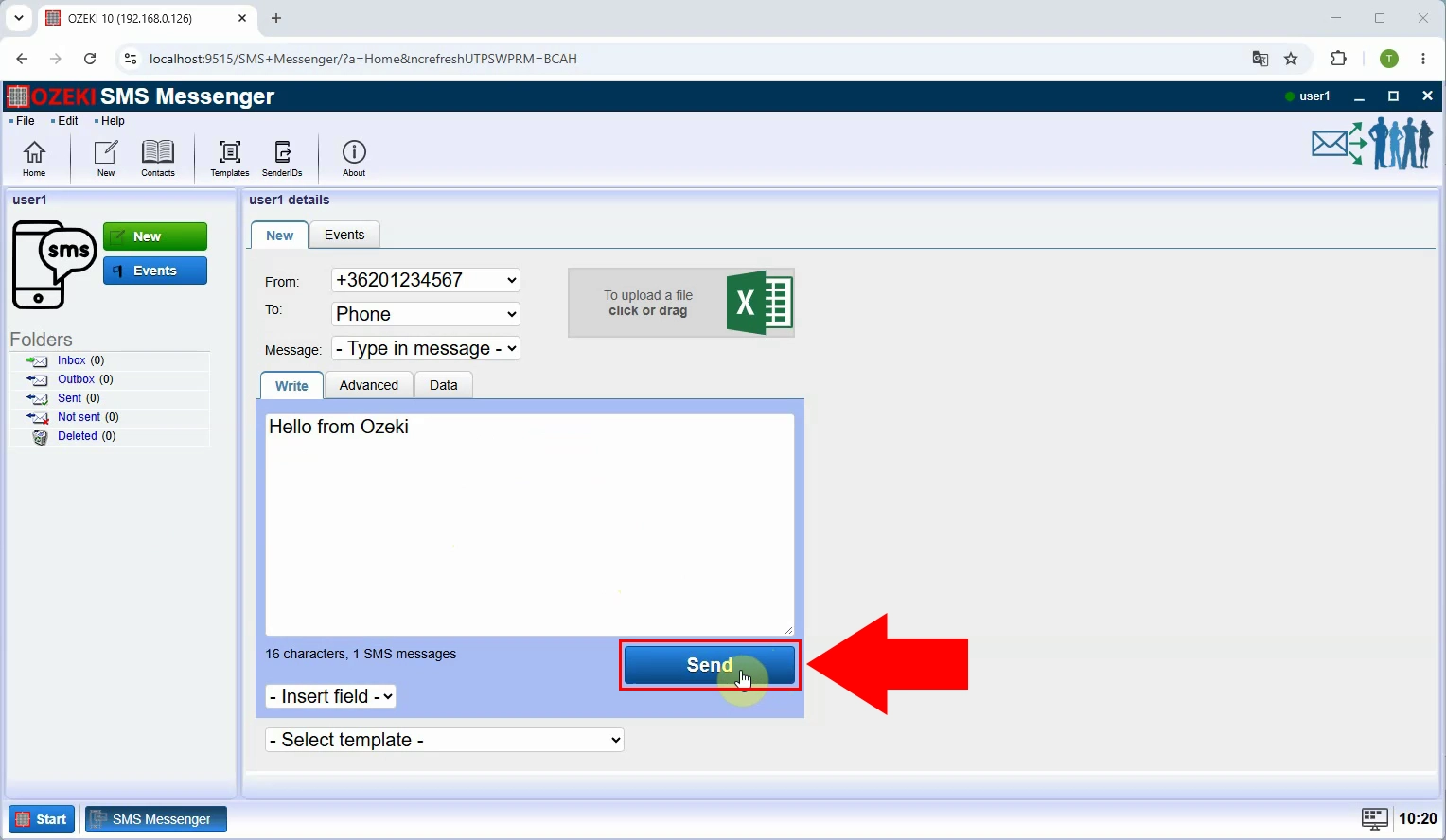
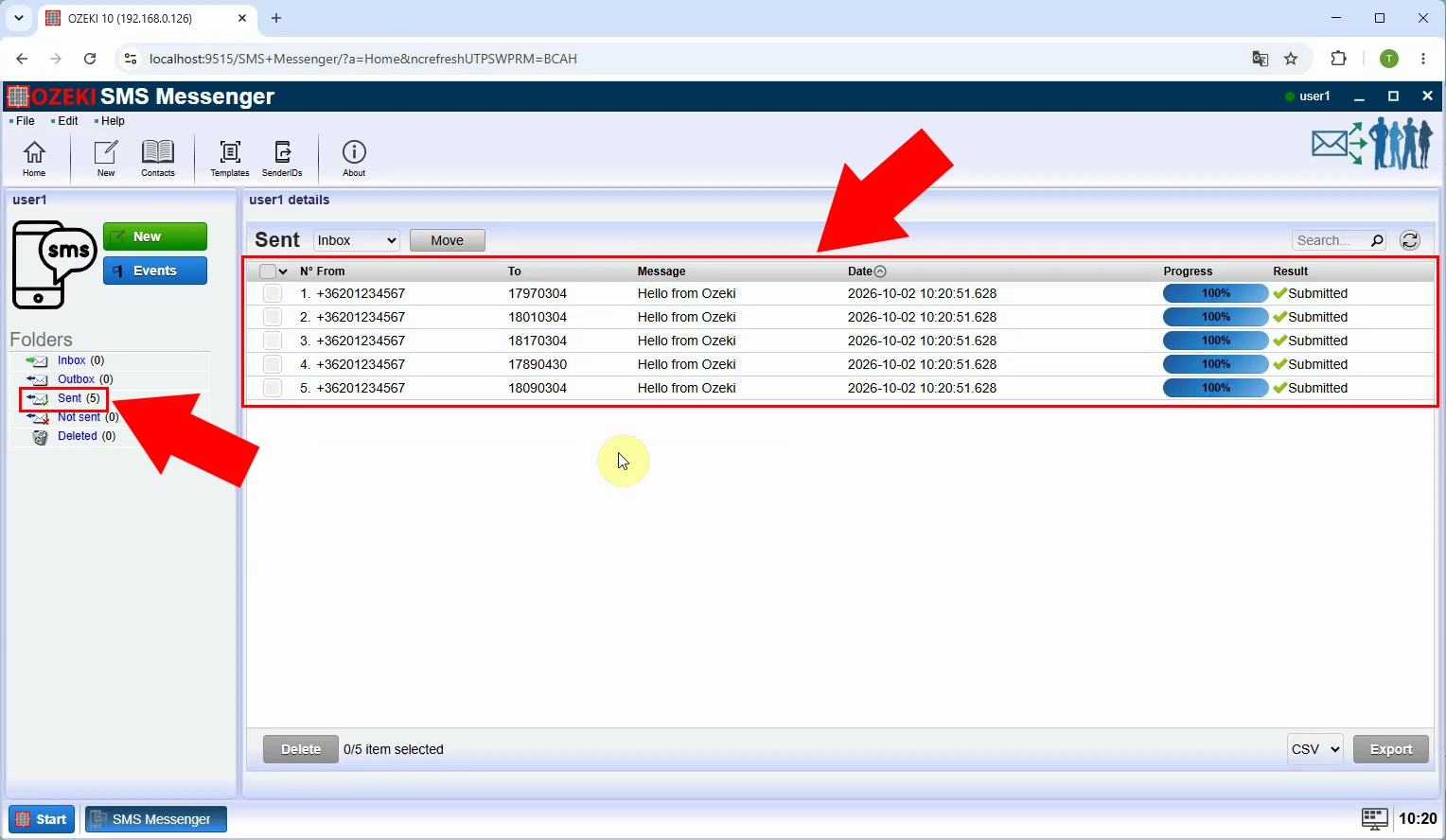
After sending, check the “Sent” folder to confirm successful delivery to all selected LDAP contacts. Each message entry should show the resolved phone number and delivery status. If any failures occur, verify LDAP connectivity, attribute mapping, and that the contacts have valid mobile numbers in the directory.