
SMS MCP Server for Claude Code
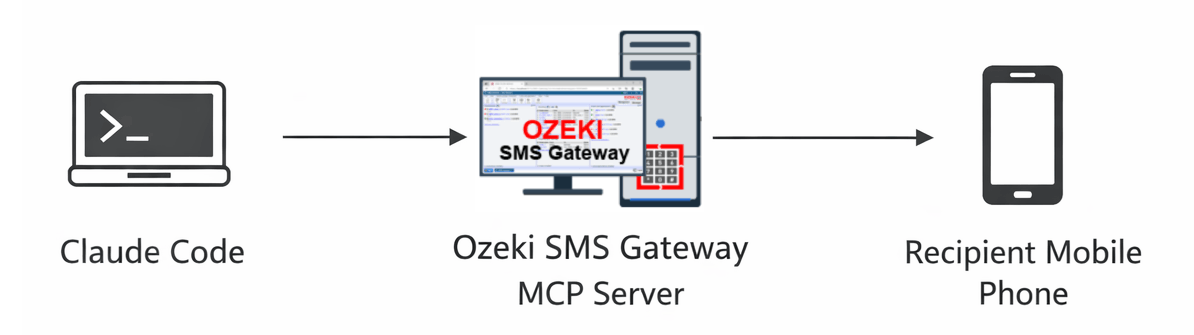
This page provides a complete overview of setting up SMS functionality with Claude Code using the Ozeki SMS MCP Server. You will learn how to configure the MCP server connection, send outgoing SMS messages, and retrieve incoming messages — all through simple plain language prompts in Claude Code.
What is Claude Code?
Claude Code is a command-line interface tool developed by Anthropic that enables developers to interact with Claude AI directly from their terminal. It provides an agentic coding experience where you can delegate programming tasks, file operations, and code generation to Claude without leaving your command-line environment.
How to configure the Ozeki SMS MCP Server with Claude Code
Learn how to add the Ozeki SMS MCP Server to your Claude Code configuration file. This guide covers editing the .claude.json file, adding the server entry with your gateway URL and API key, launching Claude Code, and verifying the MCP server connection is active.
How to configure the Ozeki SMS MCP Server with Claude CodeHow to send SMS from Claude Code
Discover how to send SMS messages directly from Claude Code using plain language prompts. This tutorial shows you how to request an SMS, confirm the tool call, and verify message delivery through the Ozeki SMS Gateway logs.
How to set up an SMS MCP server to send SMS from Claude CodeHow to receive SMS in Claude Code
Find out how to retrieve incoming SMS messages in Claude Code through the Ozeki SMS MCP server. This guide demonstrates how to ask Claude Code to list your inbox messages in plain language, review the results including sender and timestamp, and confirm the retrieval transaction in the gateway event logs.
How to set up an SMS MCP serve to receive SMS in Claude Code