
How to configure the Ozeki SMS MCP Server in Continue
This guide walks you through integrating the Ozeki SMS MCP Server with Continue, an open-source AI coding assistant extension for Visual Studio Code. By following this tutorial, you will learn how to edit the Continue configuration file, add the Ozeki SMS Gateway as an MCP server, and configure the SMS tools to run automatically without requiring manual approval on each invocation.
What is an MCP server?
An MCP (Model Context Protocol) server exposes tools that an AI model can call during a conversation. In this setup, the Ozeki SMS MCP Server provides SMS tools such as sending messages and listing incoming SMS. Continue connects to the MCP server over HTTP using the Streamable HTTP transport and authenticates using the API key you generated for your MCP user account.
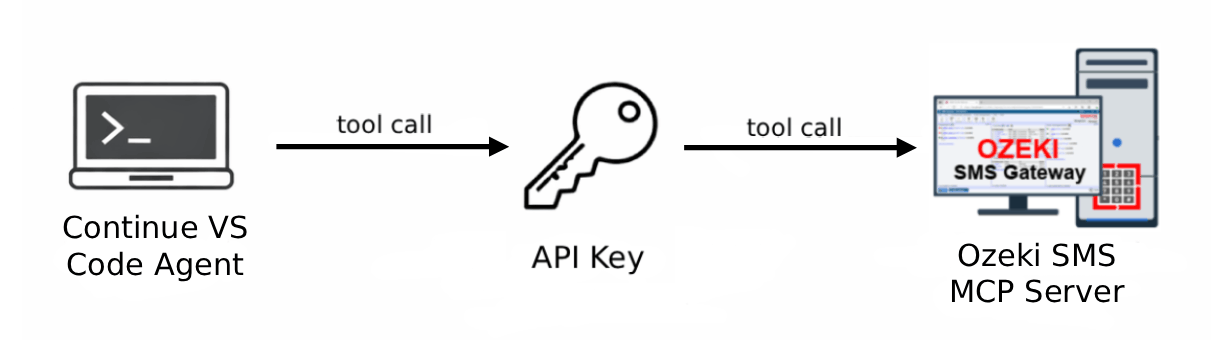
Continue MCP server configuration
# Continue configuration file location:
%USERPROFILE%\.continue\config.yaml

# Add the following block under the mcpServers section in config.yaml
# Replace {address} with your Ozeki SMS Gateway host IP
# Replace your-bearer-token with your API key
mcpServers:
  - name: Ozeki
    type: streamable-http
    url: http://{address}:9529/mcp
    requestOptions:
      headers:
        Authorization: "Bearer your-bearer-token"
Steps to follow
We assume Ozeki SMS Gateway is already installed on your system and you have already created an MCP user account with an API key. You will also need the Continue extension installed on your system. If you have not set it up yet, follow our Continue setup guide.
Video tutorial
The following video shows how to add the Ozeki SMS MCP Server to Continue step-by-step.
Step 1 - Edit the Continue config
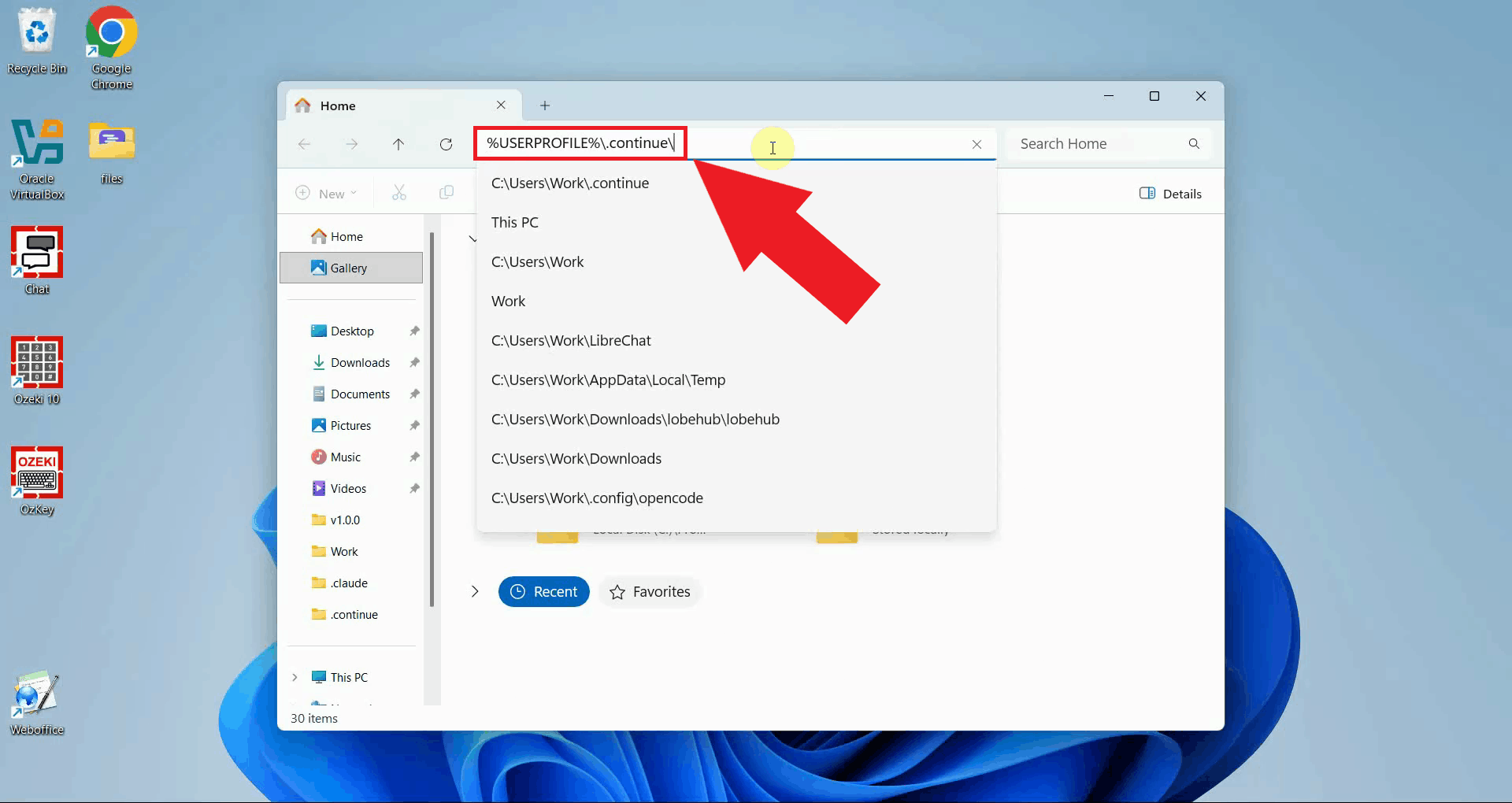
Navigate to the Continue configuration directory at
%USERPROFILE%\.continue\ using File Explorer. You can open this
folder quickly by typing %USERPROFILE%\.continue directly into the
File Explorer address bar and pressing Enter (Figure 1).
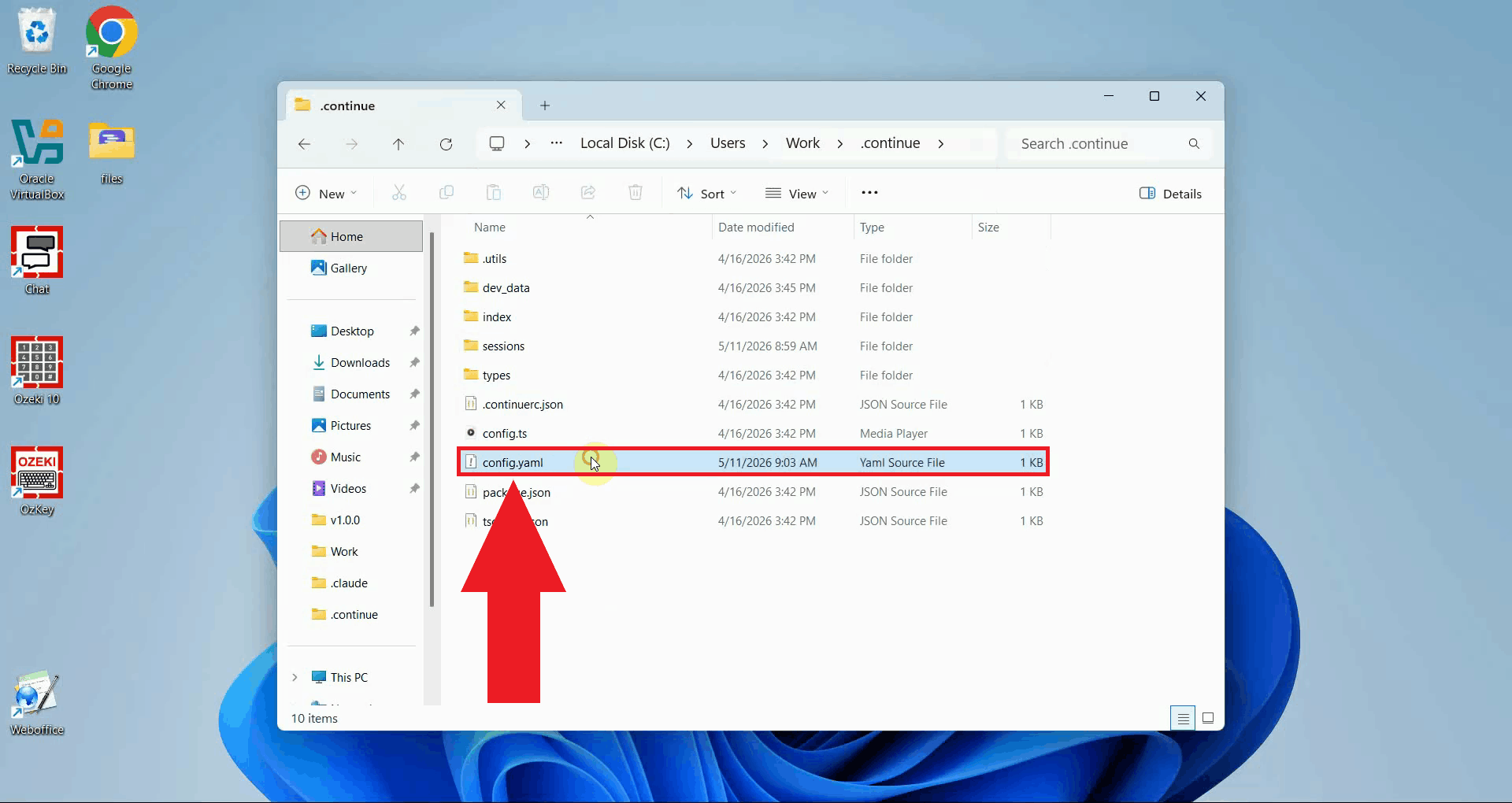
Open the config.yaml file in a text editor such as Notepad. This file
stores all Continue configuration, including any MCP servers that Continue should
connect to on startup (Figure 2).
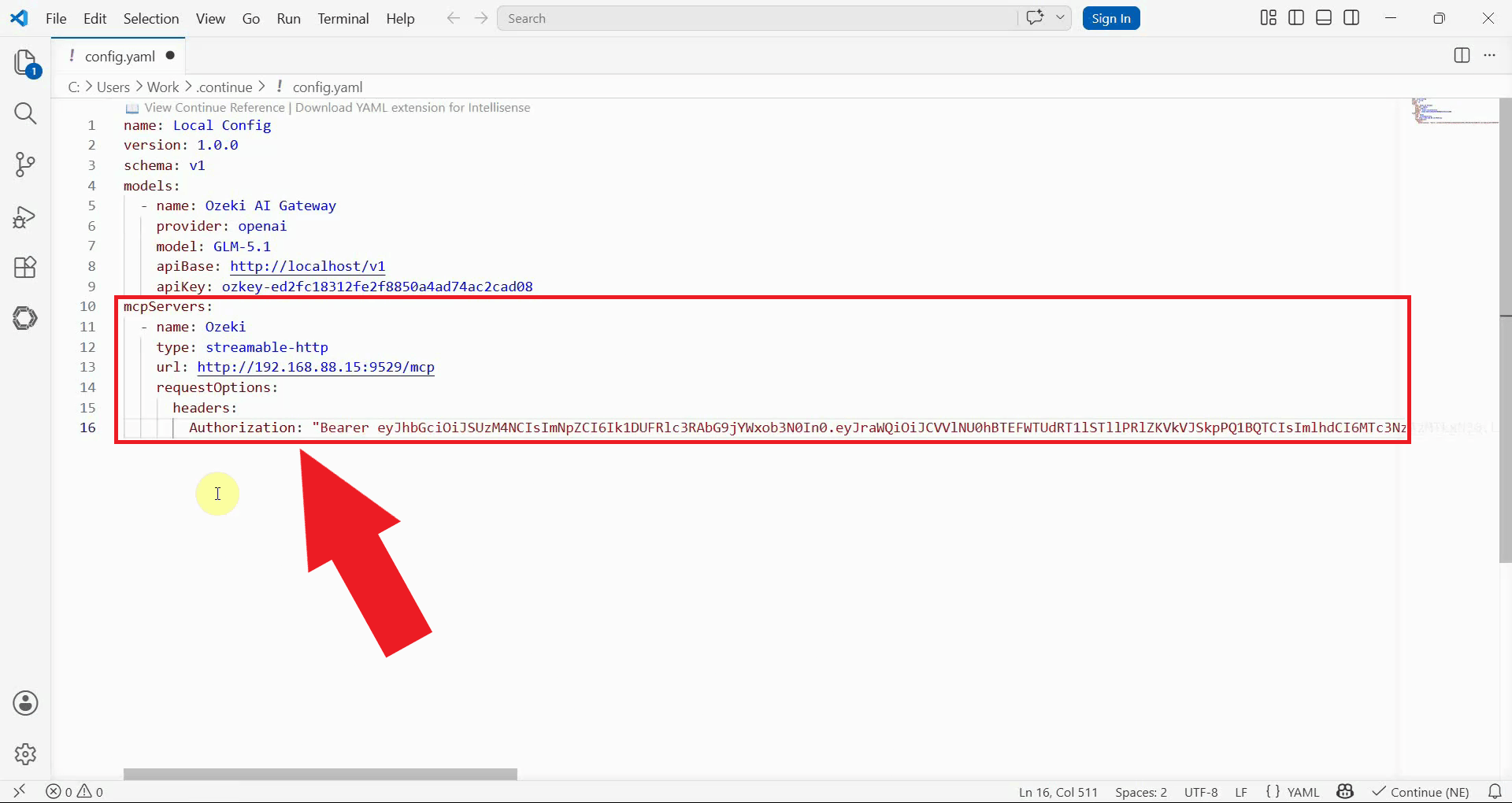
In the file, find the mcpServers section, or create it if it does not exist yet,
and insert the Ozeki SMS MCP Server entry as shown below. Replace {address}
with the IP address of your Ozeki SMS Gateway, and replace
your-bearer-token with the API key you generated for your MCP user account (Figure 3).
mcpServers:
  - name: Ozeki
    type: streamable-http
    url: http://{address}:9529/mcp
    requestOptions:
      headers:
        Authorization: "Bearer your-bearer-token"
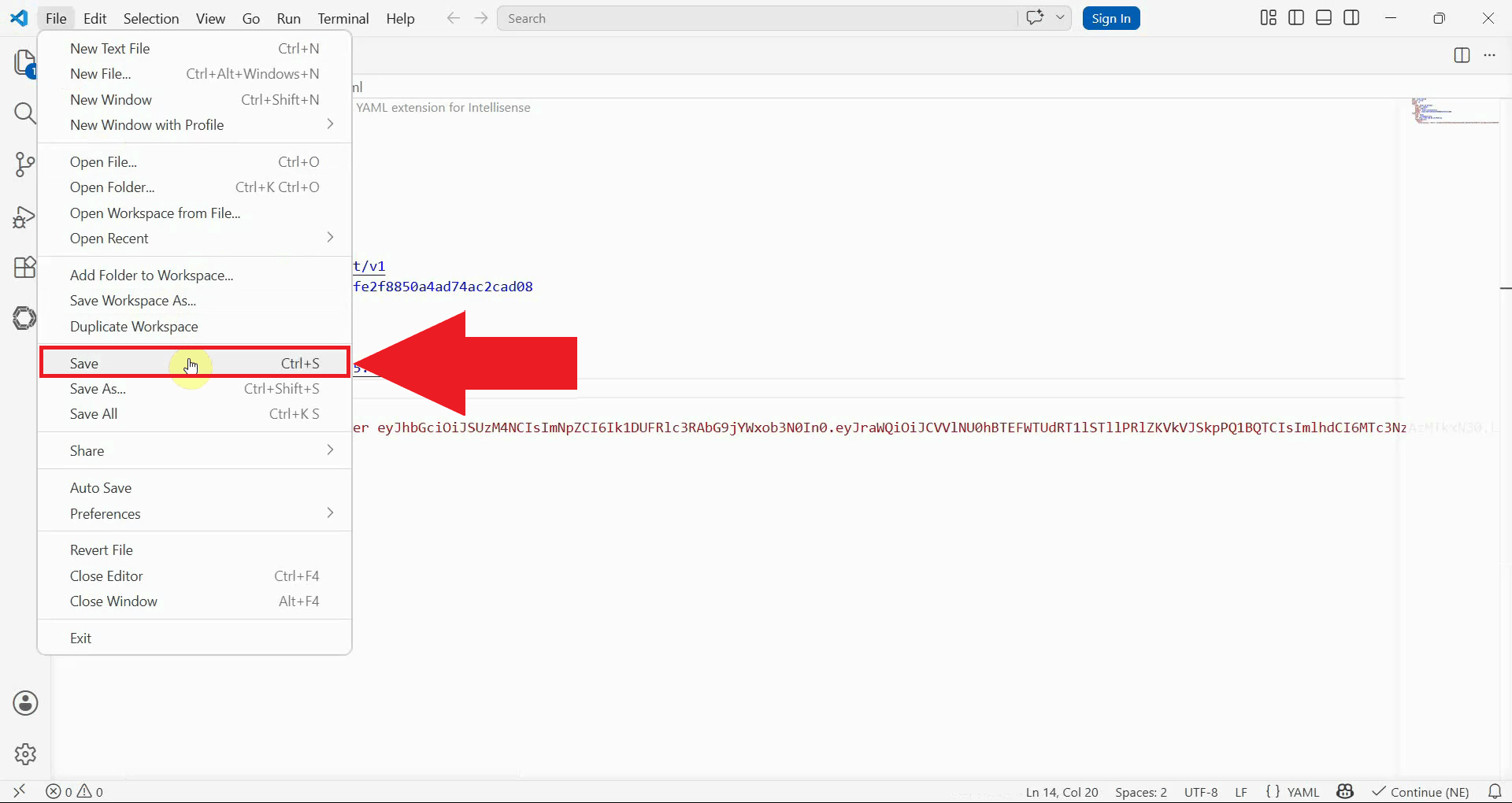
Save the configuration file. Continue will reload the configuration the next time it is opened in VS Code (Figure 4).
Step 2 - Open Continue and verify the MCP tools
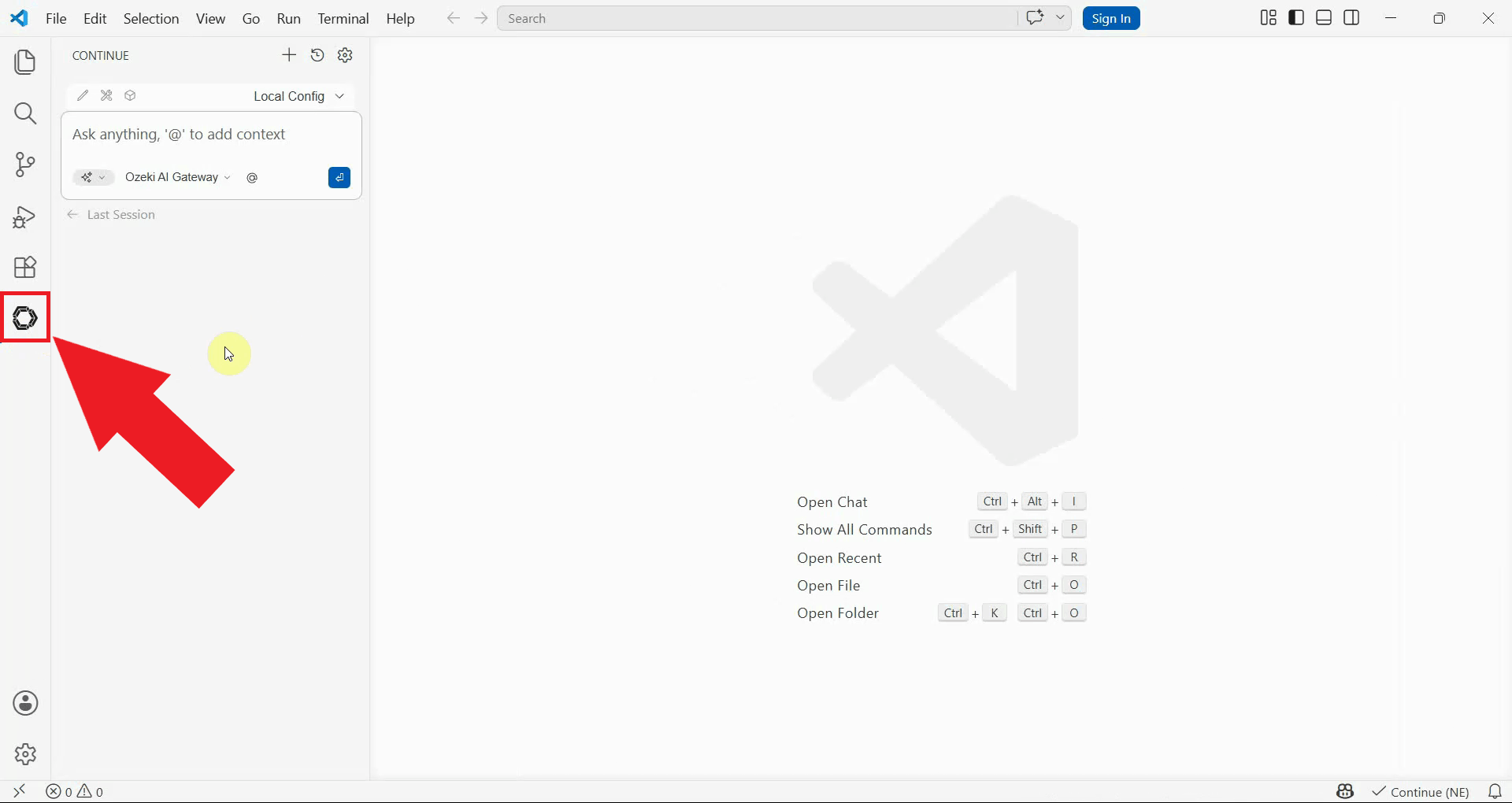
Open Visual Studio Code and click the Continue icon in the left sidebar to open the extension panel (Figure 5).
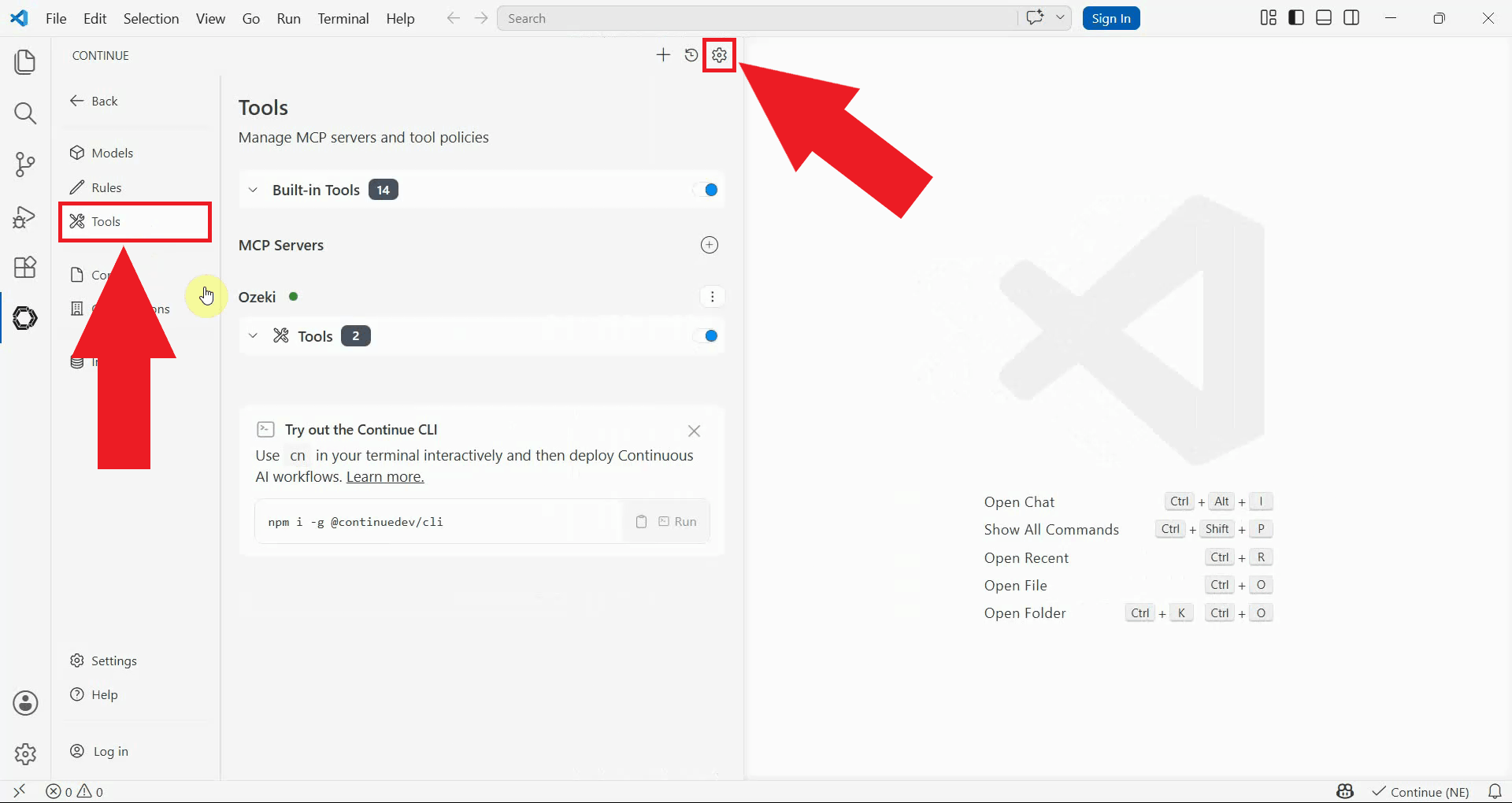
In the Continue panel, open Settings and navigate to the Tools section. This is where all MCP tools registered in the configuration file are listed (Figure 6).
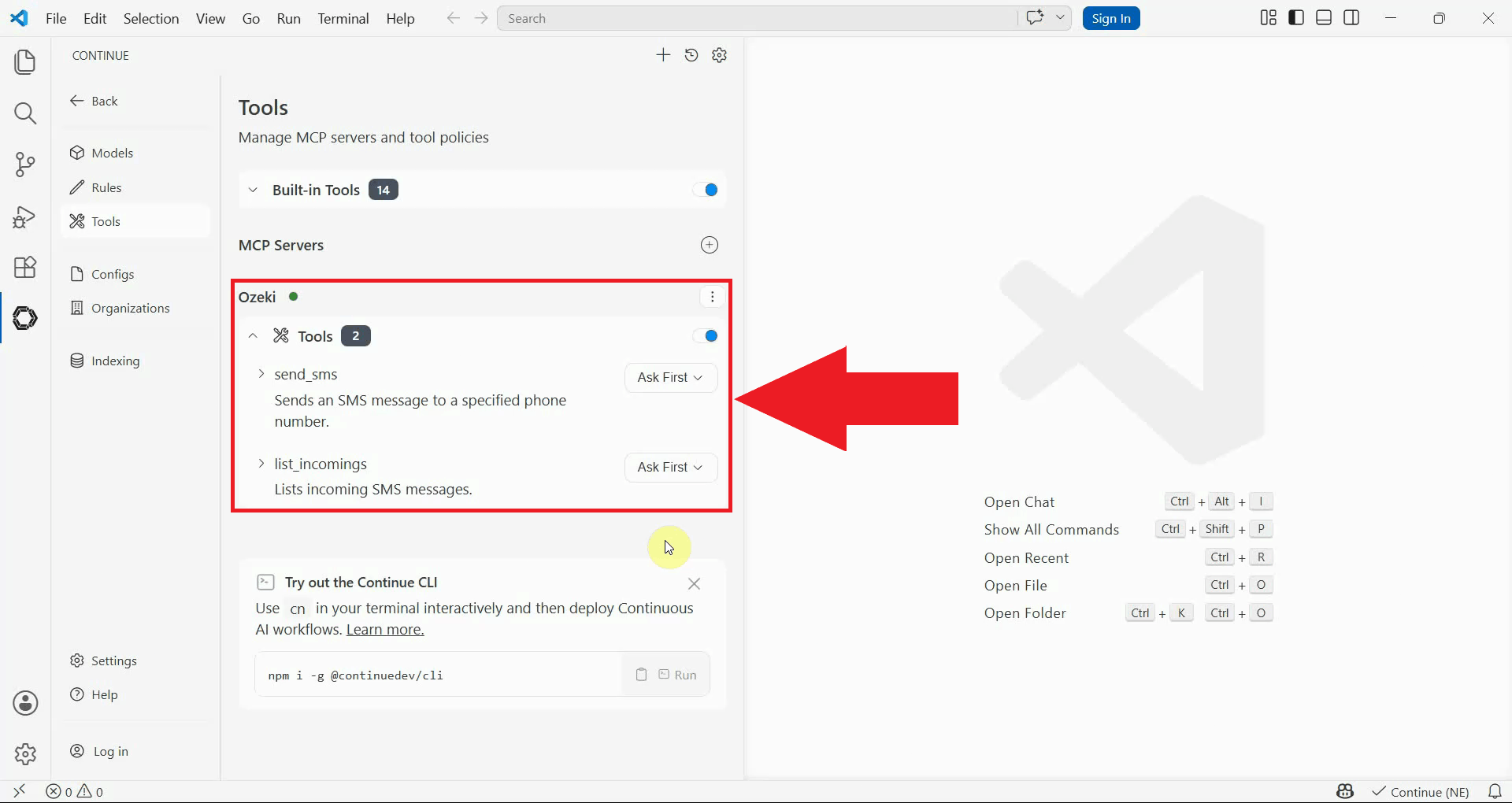
In the Tools list, you should see the Ozeki SMS tools, confirming that Continue has successfully connected to the SMS MCP Server (Figure 7).
Step 3 - Set SMS tools to automatic use
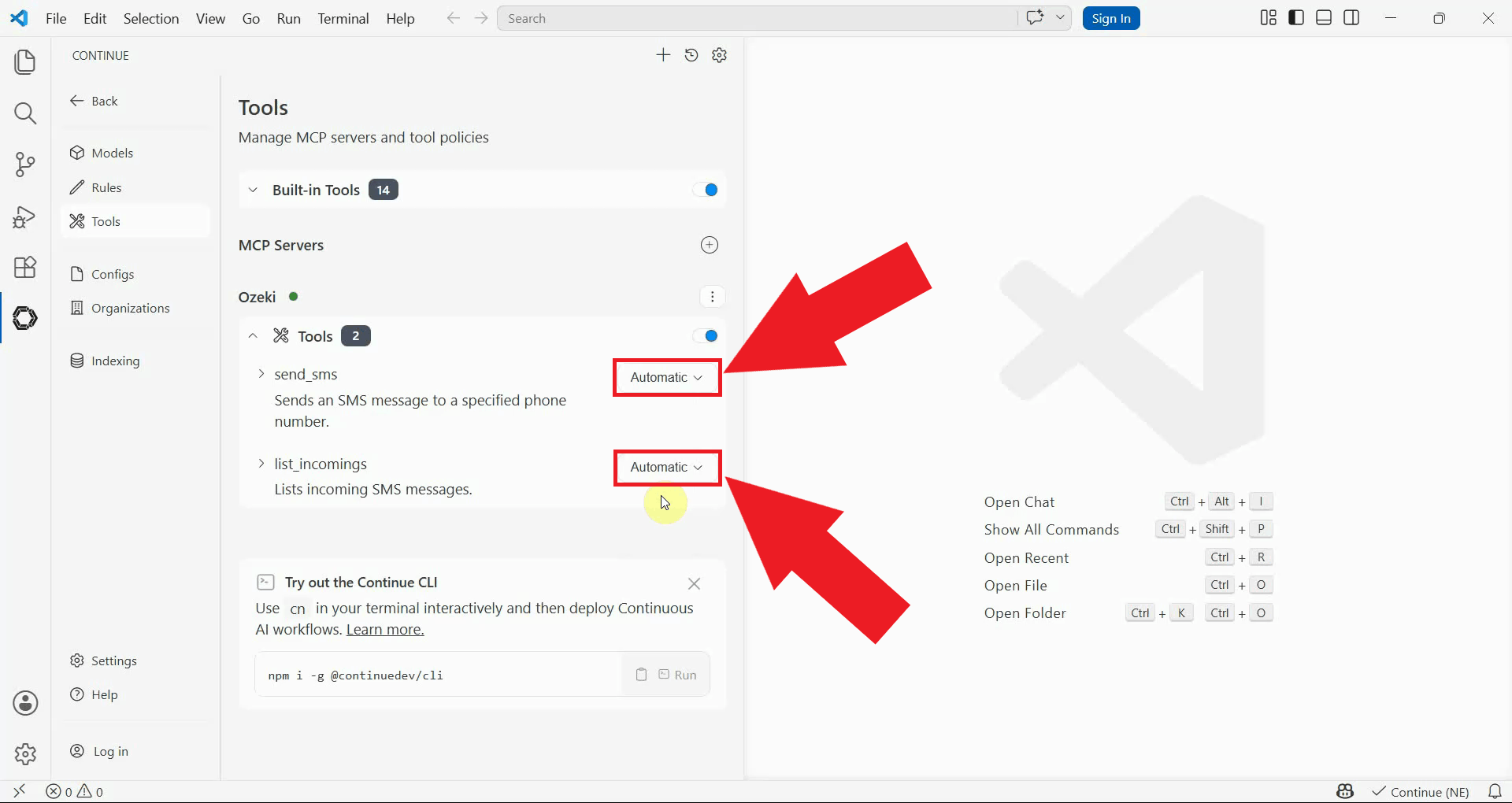
By default, Continue sets MCP tools to Ask first mode, which means it will prompt you for approval before each tool invocation. To allow the AI model to invoke the Ozeki SMS tools without manual confirmation each time, change the mode for the SMS tools from Ask first to Automatic (Figure 8).
Summary
You have successfully added the Ozeki SMS MCP Server to Continue and verified that the SMS tools are available. With the tools set to automatic use, the AI agent can invoke them without prompting you for approval on each call. Continue can now send and receive SMS messages through your gateway simply by being asked to do so in plain language.